NAS & Backup / Practical guide
How to Improve Synology NAS Performance and Speed
Improve Synology NAS performance by identifying the real bottleneck first, then tuning storage, network, SMB, hardware, and background services without relying on misleading speed tweaks.

Synology NAS devices can handle file sharing, backups, media services, and many other workloads, but performance depends on more than one setting. The bottleneck can be the disks, RAID layout, CPU, RAM, network speed, SMB configuration, or background services.
Before changing anything, identify what is actually limiting the NAS. If the network is already saturated at 1GbE, adding RAM will not increase file-transfer speed. If the disks are the bottleneck, upgrading the network alone will not help either.
I covered the same performance factors from a broader NAS and QNAP perspective in my NAS performance guide.
1. Check the bottleneck first
Start with Synology Resource Monitor and check CPU, memory, network, disk utilization, and running processes while the slowdown is happening. This gives you a much better starting point than enabling every performance option available.
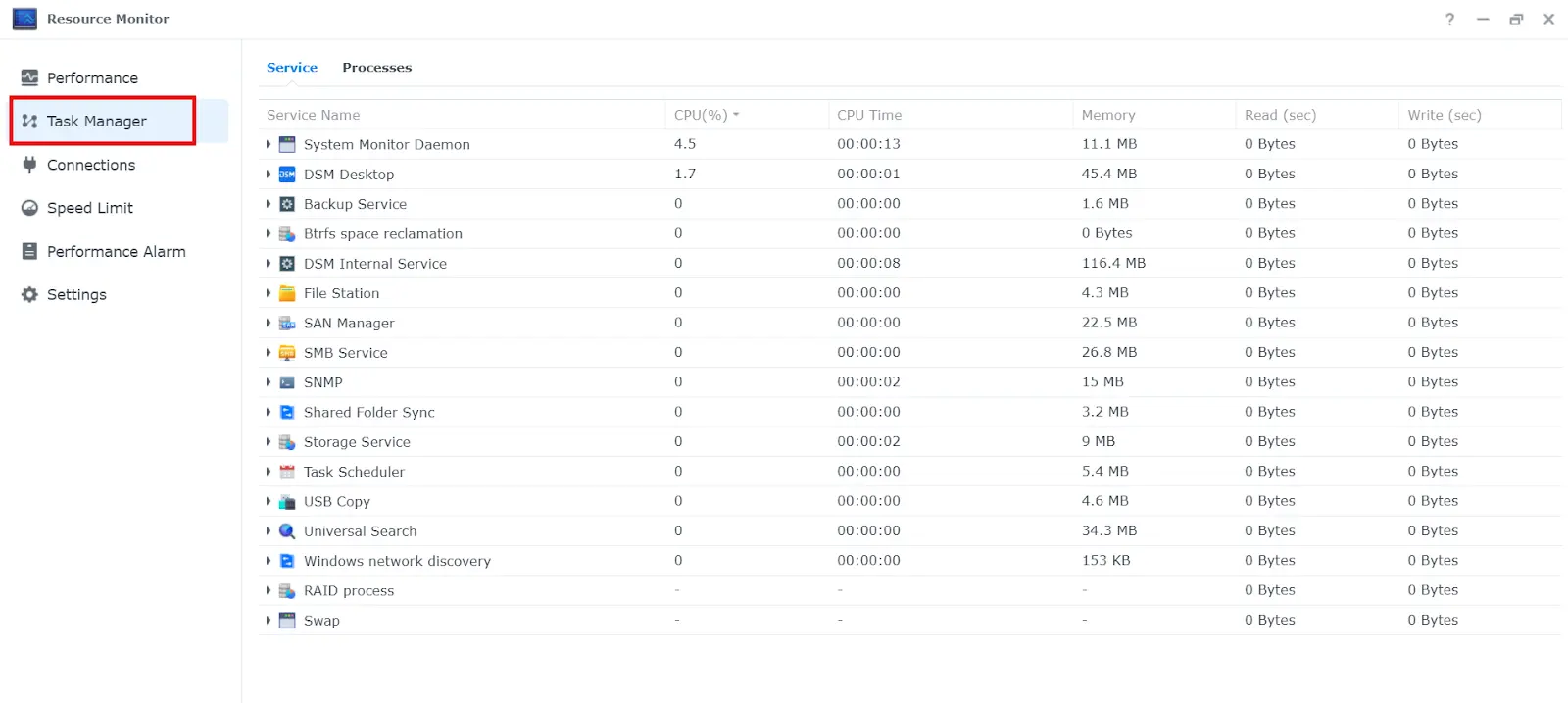
If you are troubleshooting transfer speed specifically, also test the LAN independently with iPerf. This helps separate network problems from storage problems.
2. Hardware and storage optimization
Upgrade components only when the workload needs them
More RAM can help when the NAS is under memory pressure or running several packages, containers, virtual machines, or services. SSDs can improve some workloads, but replacing HDDs with SSDs is not automatically the best upgrade for every NAS.
SSD cache can help random-I/O-heavy workloads, while large sequential file transfers may see much less benefit. Always check whether your Synology model supports the upgrade and whether the workload can actually use it.
Choose the RAID layout for the workload
RAID affects capacity, fault tolerance, and performance. Do not select a RAID type based only on benchmark speed. Choose it according to the number of drives, required redundancy, usable capacity, and workload. I discuss RAID considerations in the broader NAS performance guide.
3. Network optimization
Link Aggregation: useful, but not a magic single-client speed boost
If your Synology has two or more Ethernet ports, Link Aggregation can combine interfaces into a bond. It is especially useful when multiple clients access the NAS at the same time and can also provide failover, depending on the selected mode.
Important: Link Aggregation does not normally make one single SMB transfer twice as fast. A single connection is usually limited to one physical link. If your goal is higher throughput for one compatible SMB client, SMB3 Multichannel is often the more relevant feature.
To configure Link Aggregation, open Control Panel:
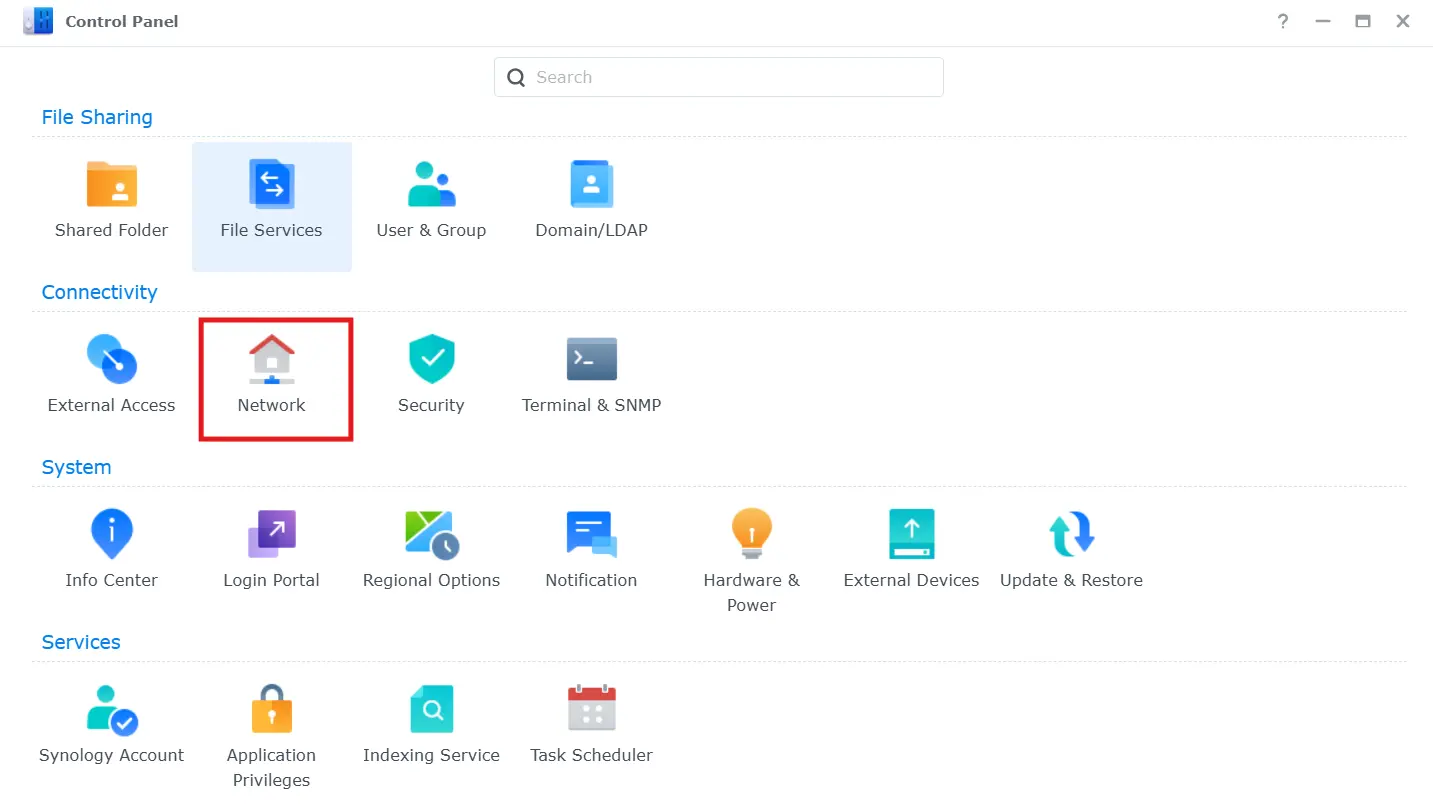
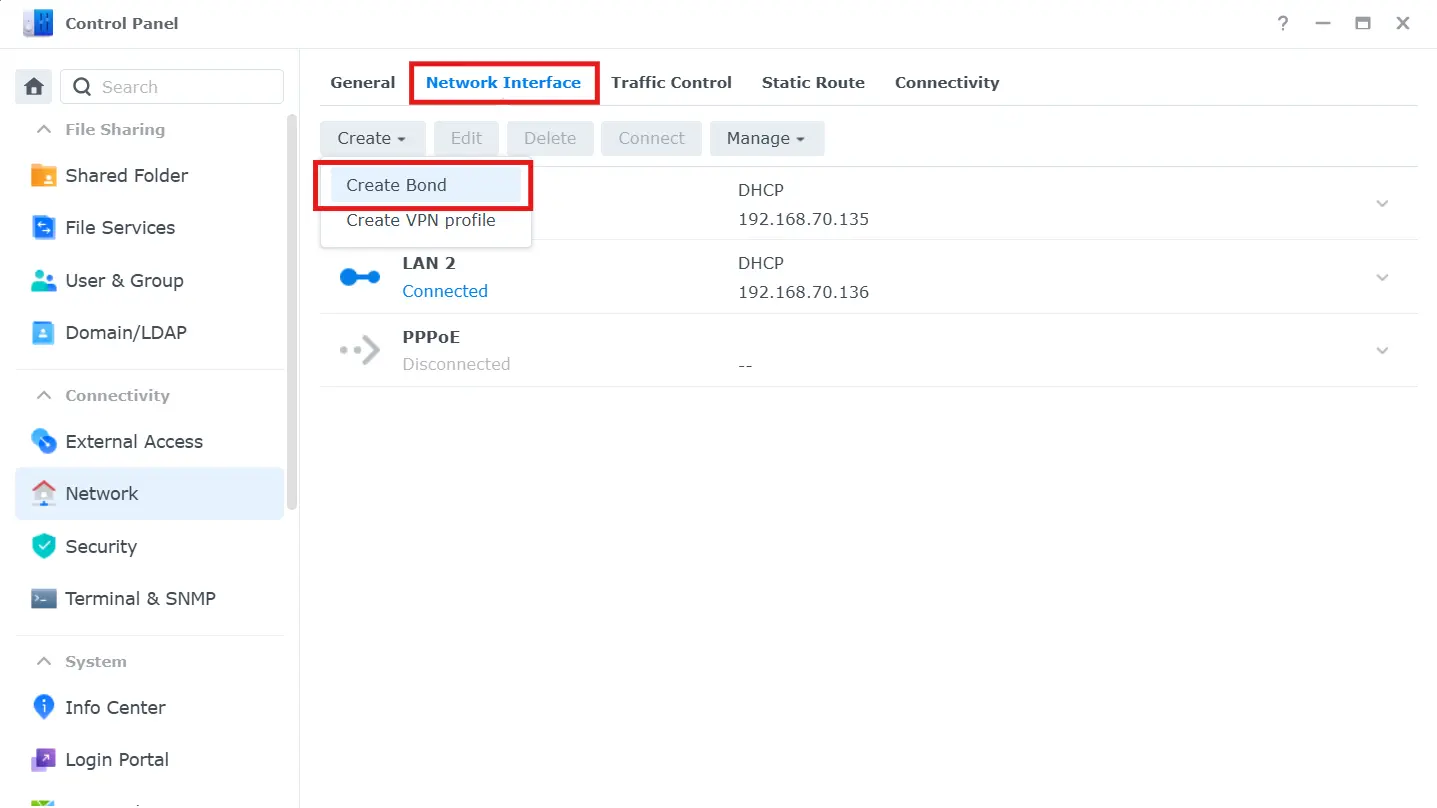
Go to Network > Network Interface, then click Create Bond:
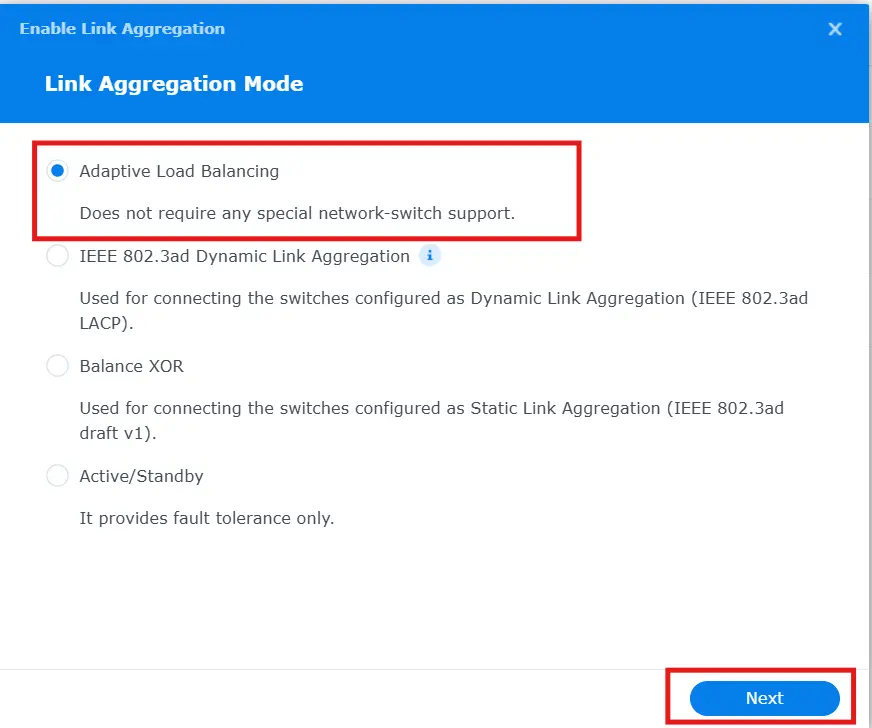
In this example I use Adaptive Load Balancing. This mode does not require a managed switch with LACP support:
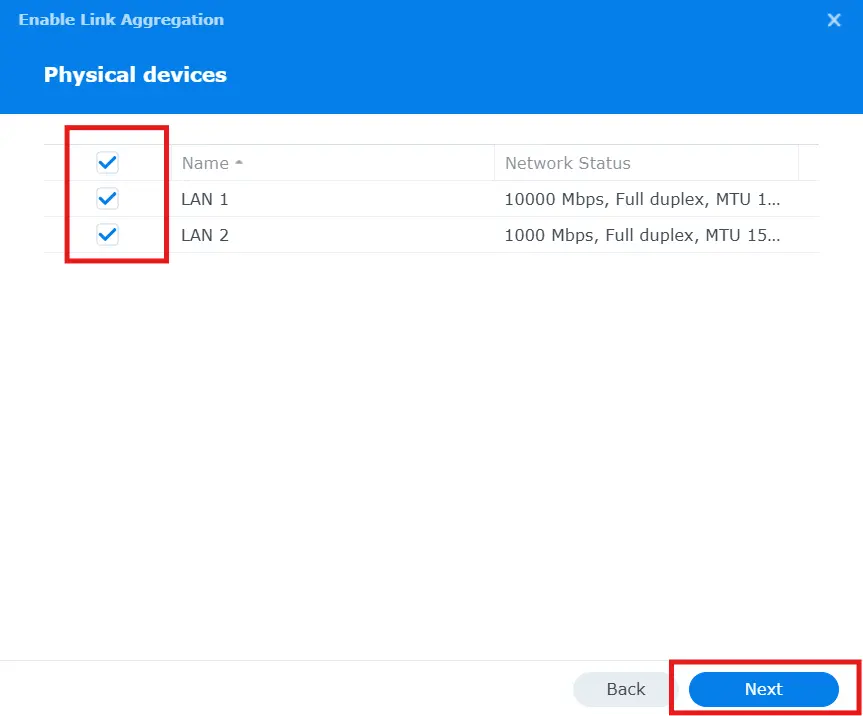
Select the interfaces you want to include in the bond:
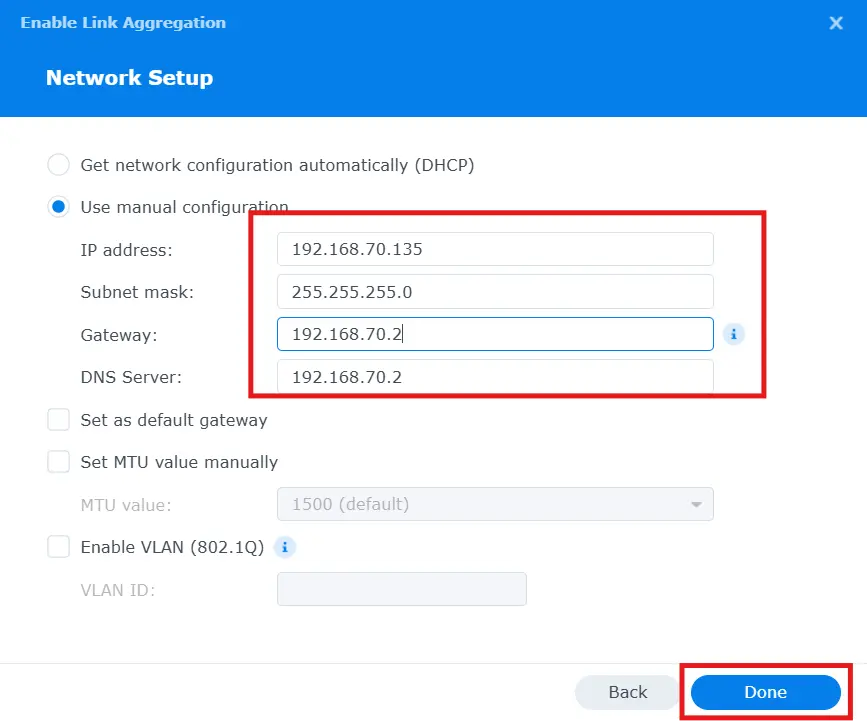
Then configure the IP settings for the new bond. If you use a static IP, assign it to the bond rather than the individual interfaces:
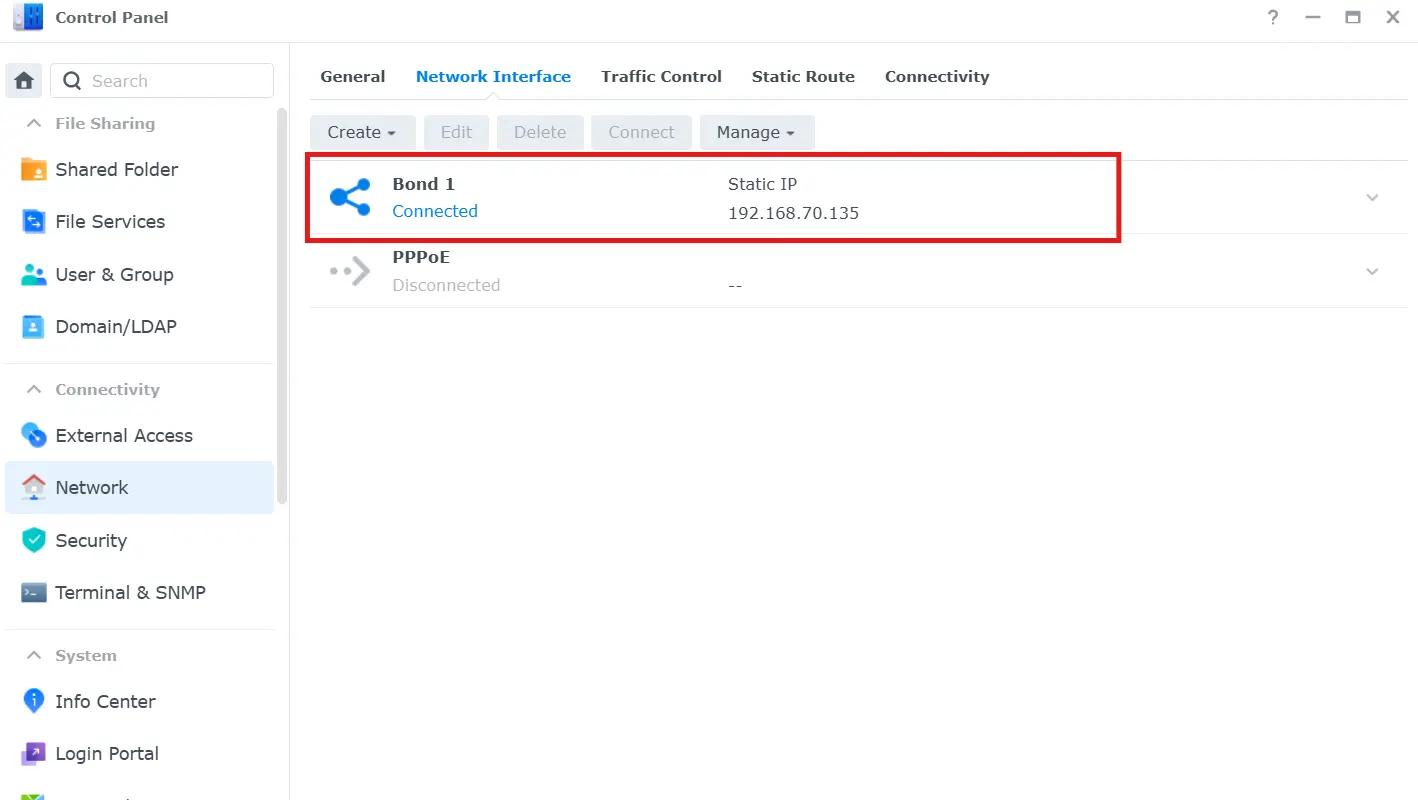
After applying the settings, the bond appears as a new network interface:
SMB3 Multichannel for compatible SMB clients
If you use Windows or another compatible SMB client, SMB3 Multichannel can use multiple network connections simultaneously and can improve throughput for a single client when both the NAS and client have the required network interfaces.
Do not enable Link Aggregation and SMB3 Multichannel together on Synology. DSM does not support Link Aggregation while SMB3 Multichannel is enabled. Choose the feature that matches your use case: Link Aggregation for multi-client load distribution/failover, or SMB3 Multichannel for higher SMB throughput from a compatible client.
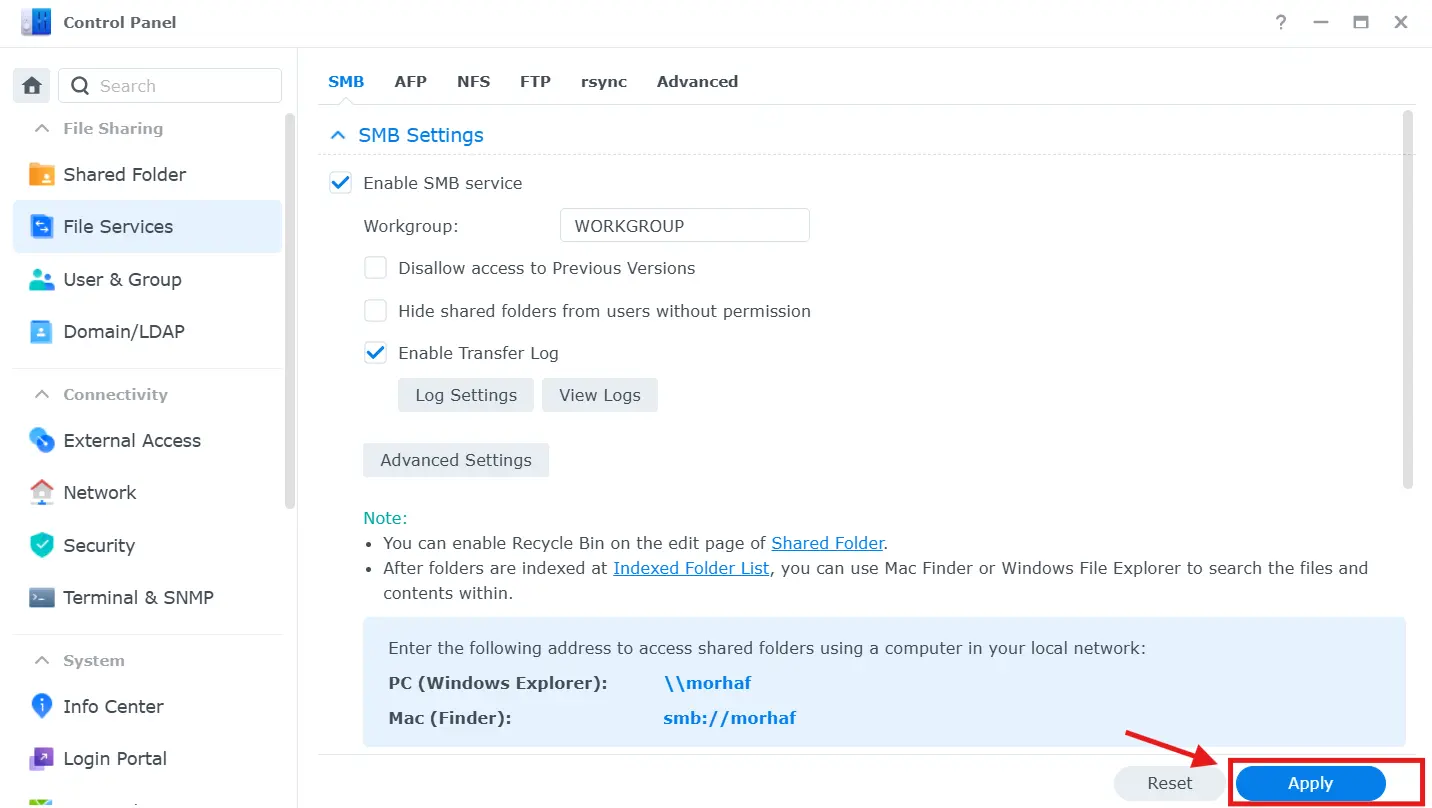
Go to Control Panel > File Services > SMB, then open the advanced settings:
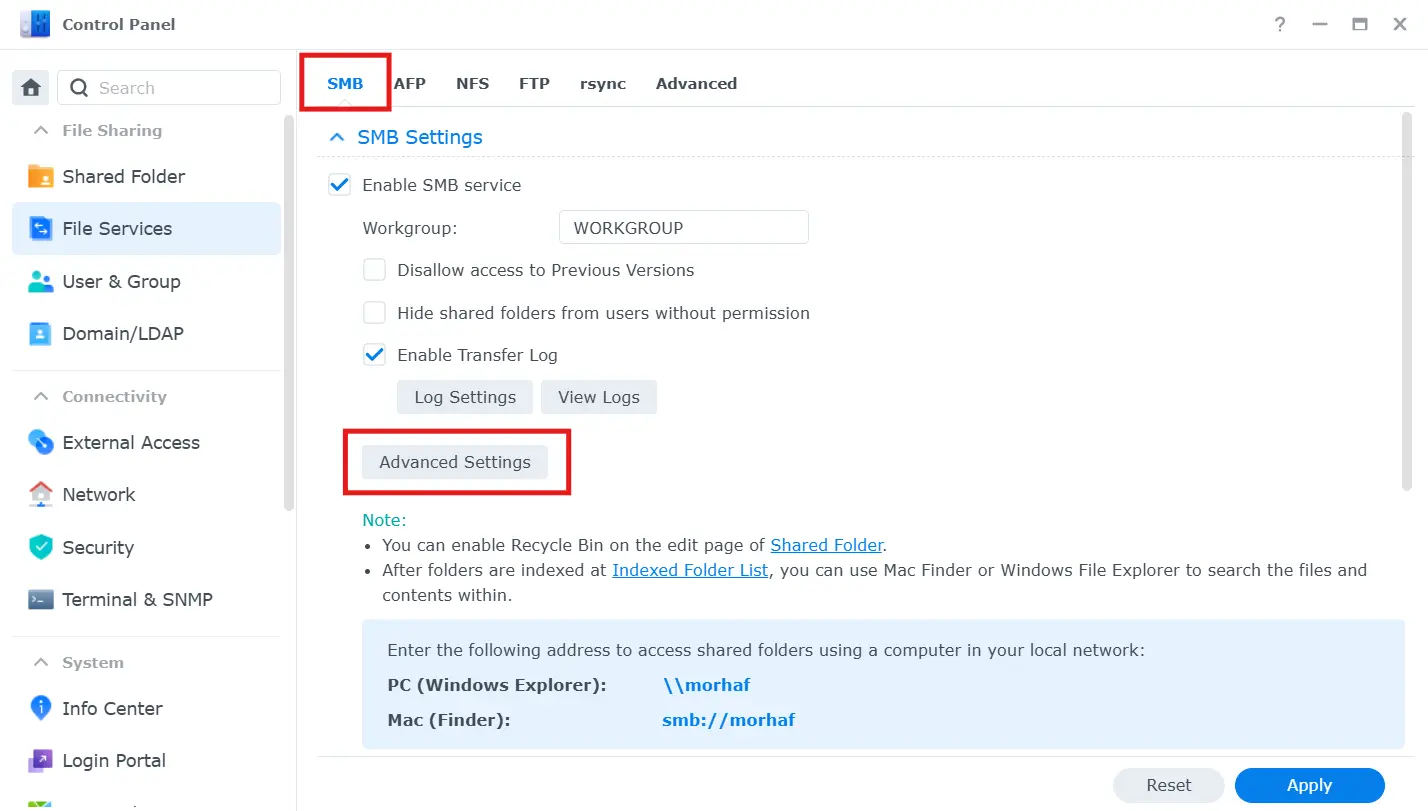
On supported DSM versions and models, enable SMB3 Multichannel in the SMB settings:
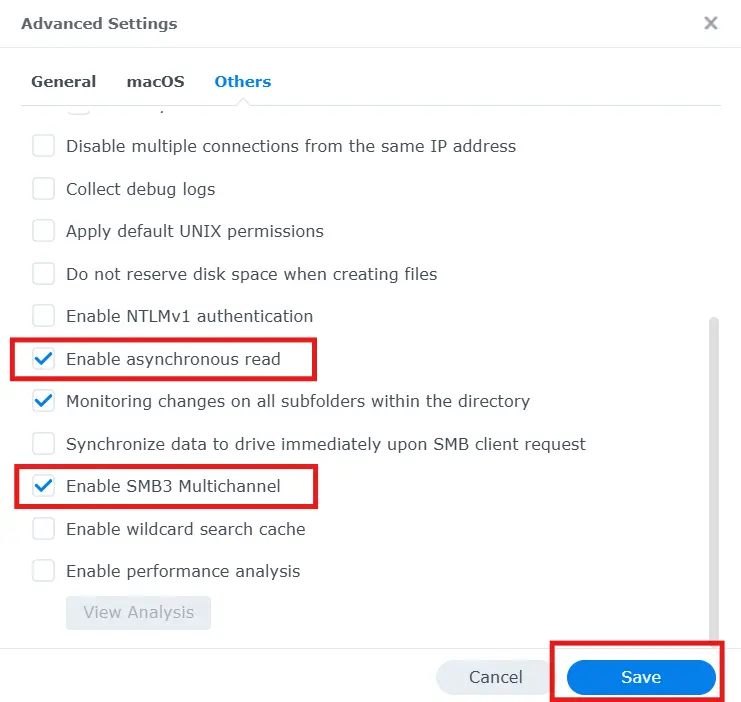
Save the settings and click Apply:
4. System and software optimization
Disable services you do not use
Packages and services consume CPU, memory, disk I/O, and sometimes network bandwidth. Review media indexing, backup jobs, containers, antivirus scans, and other scheduled tasks. Disable only what you know you do not need.
Schedule heavy jobs outside busy hours
Backups, integrity checks, RAID scrubbing, media indexing, and large synchronization jobs can compete with normal file access. Schedule them outside active hours where possible.
Keep DSM and packages updated
Keep DSM and packages on supported versions, but for a business NAS I prefer controlled updates over blindly installing every update immediately. Review release notes, keep a backup, and apply important security and stability updates promptly.
Monitor drive health and free space
Check SMART/drive-health information and storage-pool status regularly. A degraded array, failing disk, or nearly full volume can affect performance and reliability.
Be careful with large numbers of small files
Millions of small files create more metadata and filesystem overhead than a smaller number of large files. If your workload contains huge numbers of small files, directory structure, indexing, backup behavior, and application design can all affect performance.
What should you upgrade first?
- 1GbE network saturated: consider 2.5GbE/10GbE or SMB3 Multichannel where supported.
- CPU constantly high: reduce heavy services or consider a stronger NAS model.
- Memory pressure: add supported RAM.
- Disk latency high: review RAID, drive health, SSD options, and workload.
- Several users are slow at the same time: investigate network bandwidth, Link Aggregation, and storage throughput.
Conclusion
The best Synology performance improvement depends on the actual bottleneck. Start with Resource Monitor and an iPerf network test, then upgrade or tune the component that is limiting the workload.
For a broader NAS example using QNAP, including port trunking and general storage considerations, check the NAS performance guide.