NAS & Backup / Practical guide
How to Improve NAS Speed and Performance
Improve QNAP and general NAS performance by finding the real bottleneck first, then tuning storage, network, SMB, port trunking, backup schedules, and hardware upgrades.

It is very common to use network attached storage as a central location for file sharing and collaboration, with several users and devices accessing the NAS at the same time.
When performance starts to drop, the right solution depends on the bottleneck. CPU, RAM, disks, RAID, network speed, SMB configuration, and background jobs can all limit performance. The best approach is to measure first, then optimize the part that is actually saturated.
What affects NAS performance?
Hardware
- CPU and RAM: important when the NAS runs many services, applications, containers, media workloads, or multiple concurrent tasks.
- HDDs and SSDs: drive type, number of drives, workload, and RAID layout all affect read/write performance.
Network
- LAN speed can become the main limitation during file transfers.
- A 1GbE connection usually tops out around 110-120 MB/s in ideal real-world file transfers.
- 2.5GbE and 10GbE can provide much higher throughput, but only if the NAS storage and client can keep up.
Software and configuration
- RAID layout and storage-pool configuration
- Number of concurrent users
- SMB and other file-service settings
- Background services such as media indexing and backup jobs
1. Hardware and storage optimization
Add RAM only if memory is actually a bottleneck
More RAM can help when the NAS is under memory pressure, but it does not automatically increase file-transfer speed. Check system-resource usage before upgrading.
Use SSDs where the workload benefits
SSDs can significantly improve random I/O and latency-sensitive workloads, but a large sequential file transfer may still be limited by the network. SSD cache can also help specific workloads, but it is not a universal speed upgrade.
Choose RAID for redundancy, capacity, and workload
RAID affects fault tolerance, usable capacity, and performance. The figures below are general guidance only; actual performance depends heavily on the NAS, drive count, controller, workload, and filesystem.
| RAID Type | Minimum Drives | Fault Tolerance | Typical Use |
|---|---|---|---|
| RAID 0 | 2 | None | Maximum performance where redundancy is not required |
| RAID 1 | 2 | 1 drive | Simple redundancy for two-drive systems |
| RAID 5 | 3 | 1 drive | Balanced capacity and redundancy |
| RAID 6 | 4 | 2 drives | Higher redundancy for larger arrays |
| RAID 10 | 4 | Depends on which drives fail | High-performance workloads with redundancy |
2. Network optimization
Upgrade the network only when 1GbE is the bottleneck
If you consistently saturate a 1GbE interface, moving to 2.5GbE or 10GbE can help. You do not automatically need Cat7: Cat5e can support 2.5GbE in many environments, while Cat6 is a practical choice for 10GbE over shorter runs.
Configure QNAP Port Trunking when it matches the use case
Most QNAP models with multiple network interfaces support Port Trunking. It combines interfaces into one logical connection for load balancing and/or failover depending on the selected mode.
Important: Port Trunking does not normally double the speed of one single client connection. It is mainly useful when several clients access the NAS simultaneously or when you need link redundancy. For a compatible single SMB client, SMB Multichannel can be more relevant.
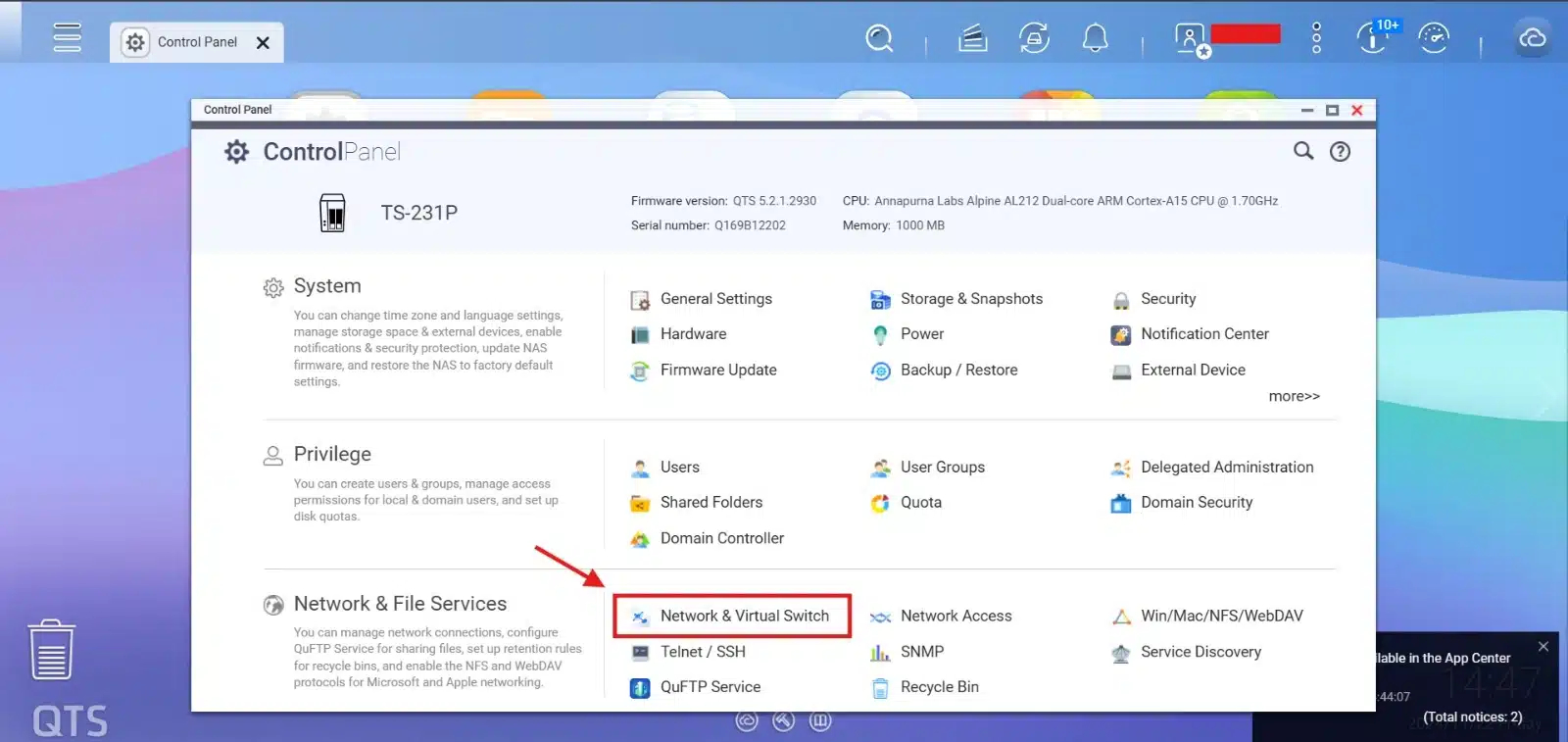
On the QNAP management portal, open Control Panel > Network & Virtual Switch:
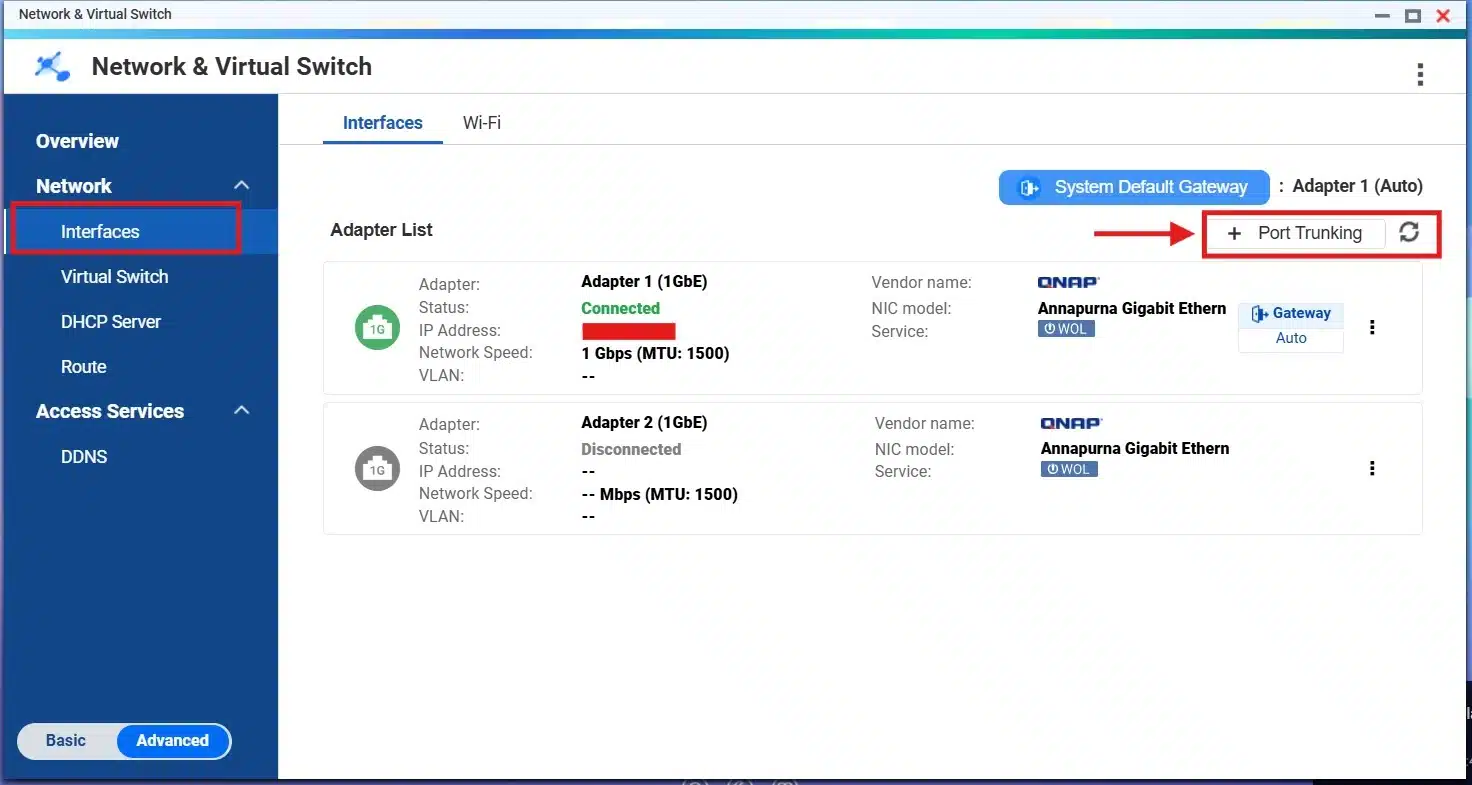
Go to Interfaces and click Port Trunking:
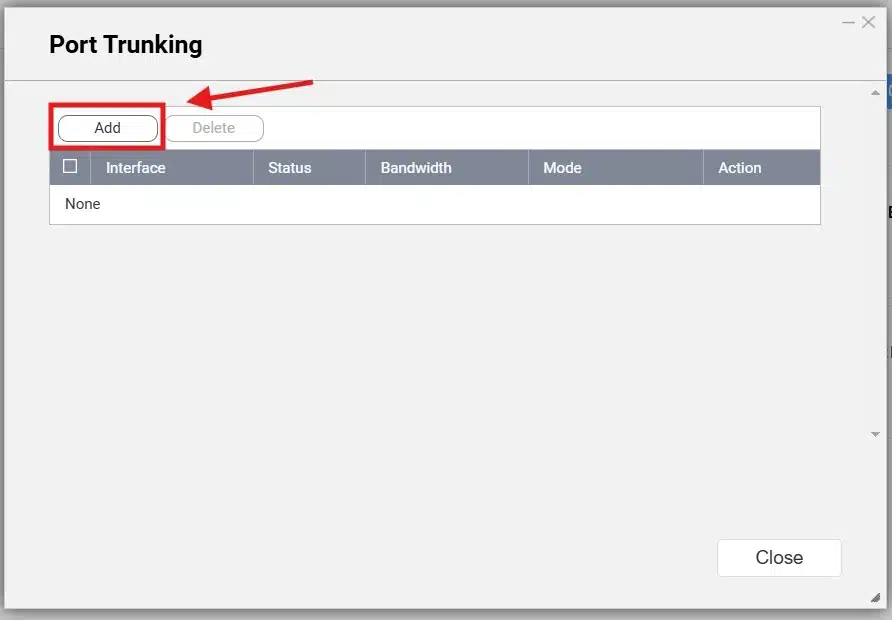
Click Add to create a new trunk:
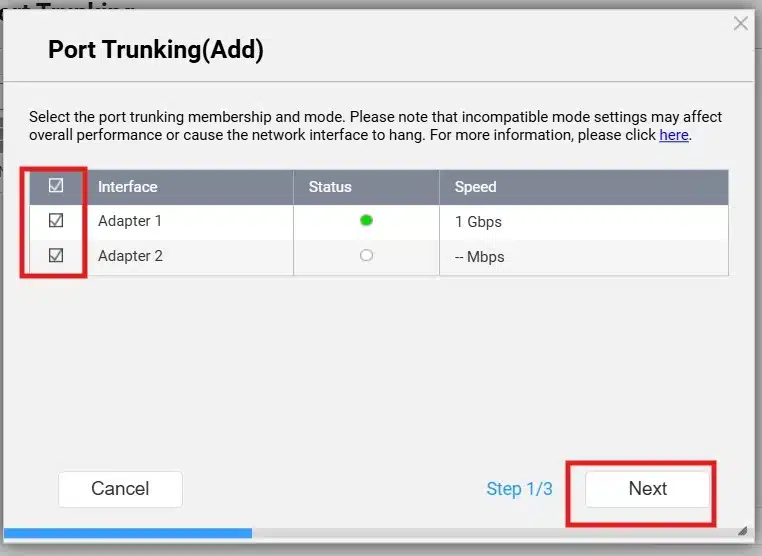
Choose the network interfaces you want to include, then click Next:
Select the switch type and trunking mode that match your network:
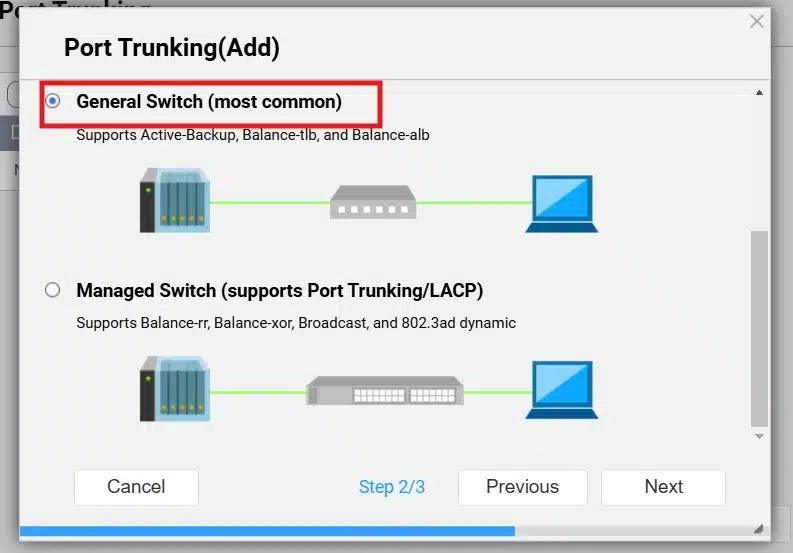
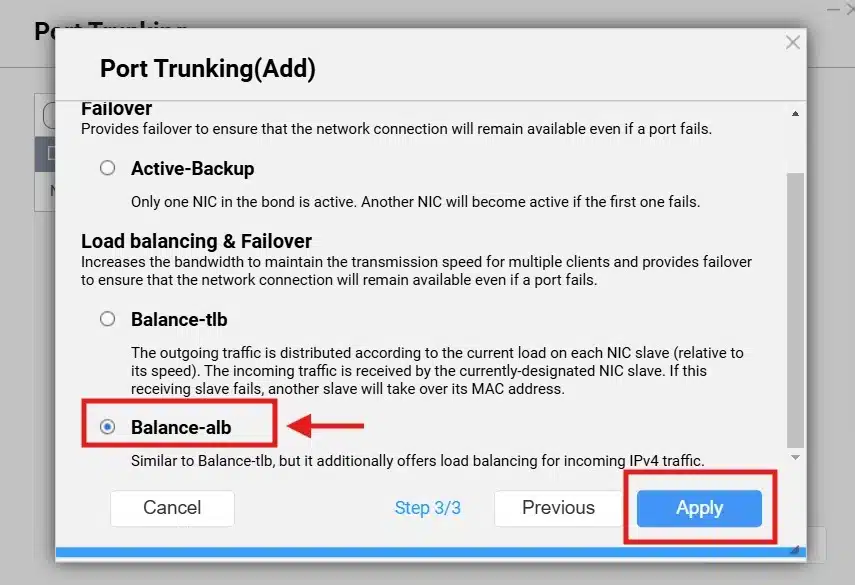
In this example I use Balance-alb. The available modes and switch requirements differ, so check the QNAP documentation before choosing a mode.
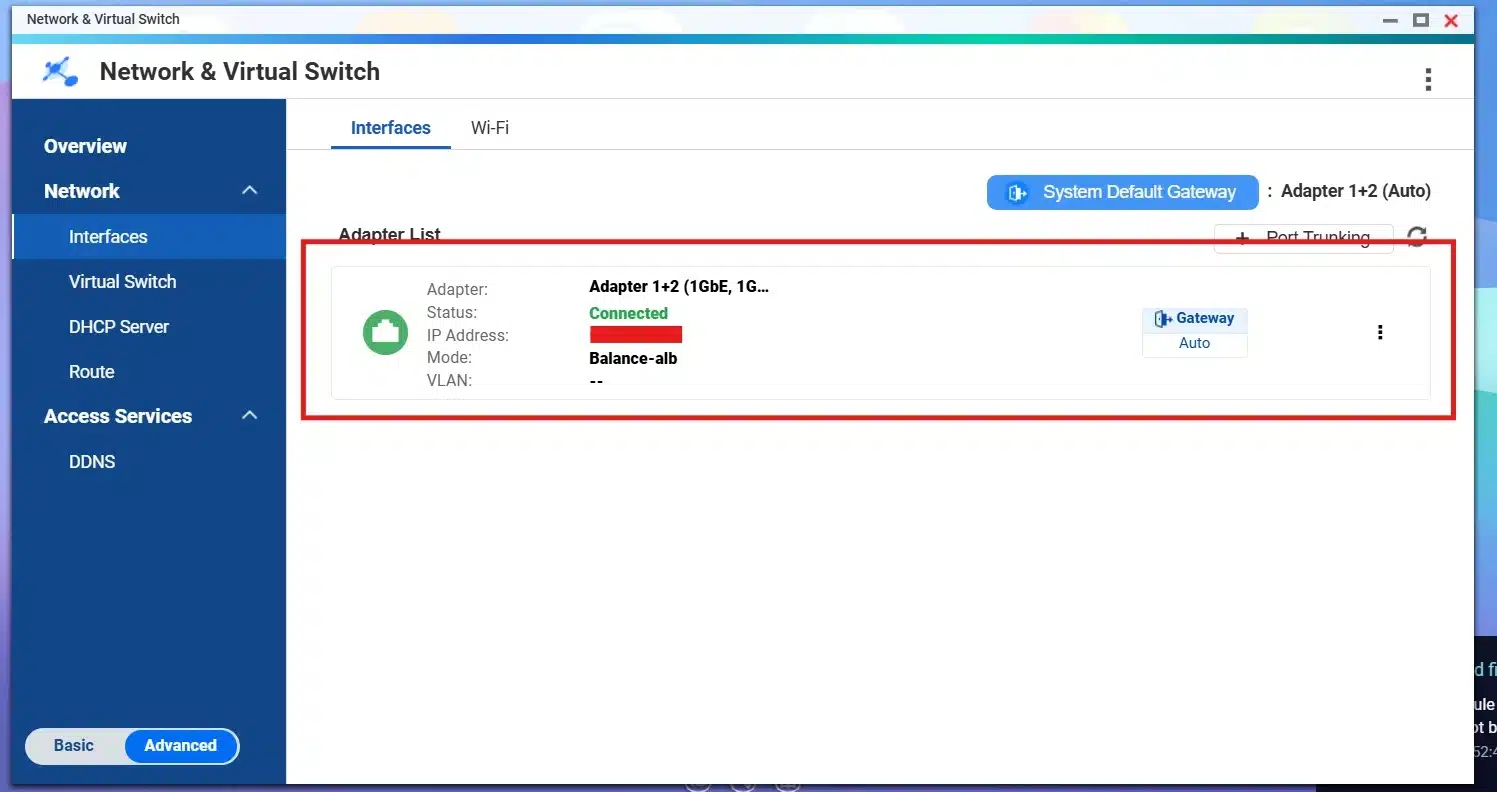
After applying the settings, the trunk appears as a combined adapter:
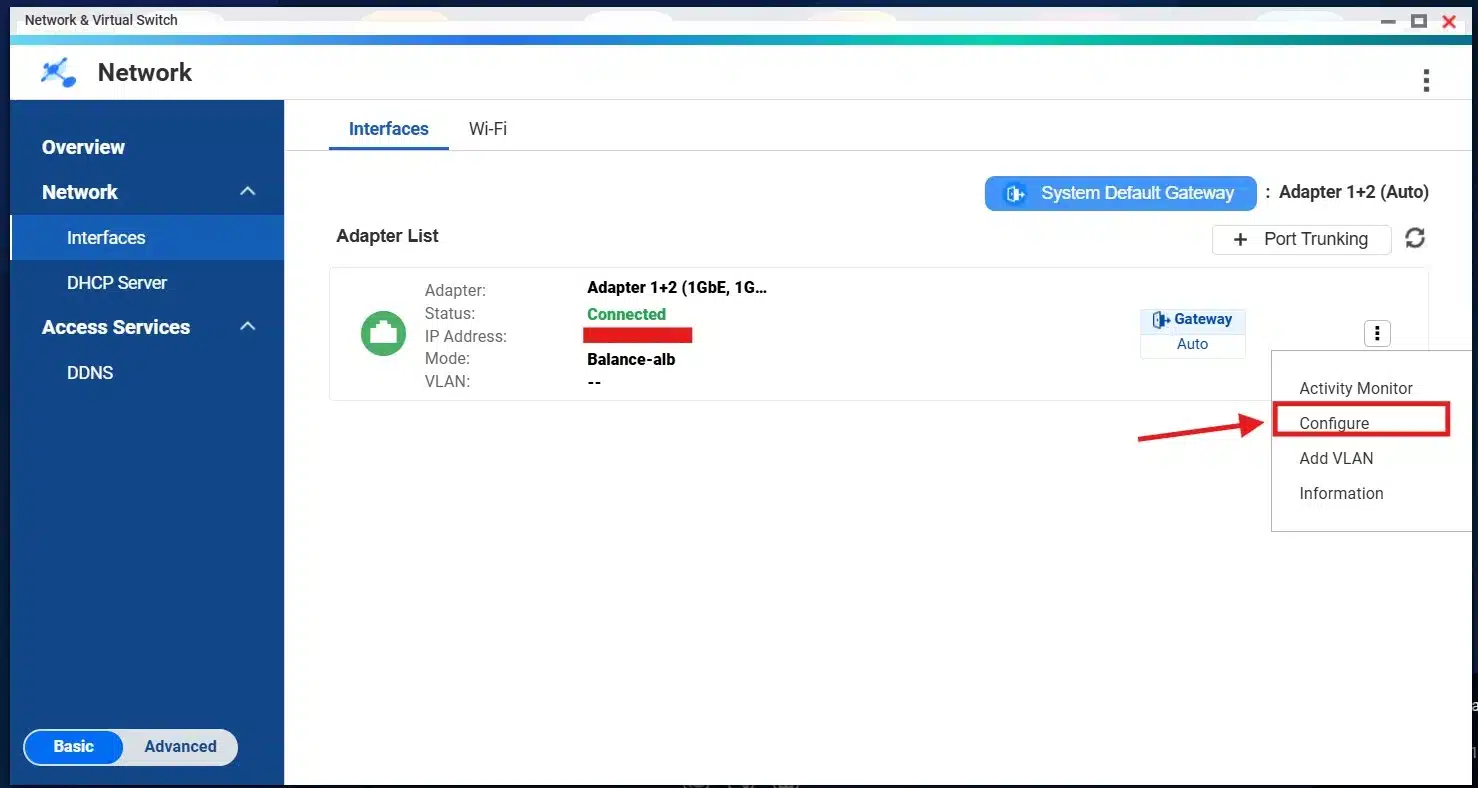
The trunk uses one IP configuration, which you can set to DHCP or static addressing:
Use SMB Multichannel for compatible SMB clients
SMB Multichannel allows SMB to use multiple suitable network connections. On supported QTS and QuTS hero versions, it can improve throughput and add connection resilience when both NAS and client have compatible network adapters.
Open Control Panel > Win/Mac/NFS/WebDAV > Microsoft Networking (SMB), then enable SMB Multichannel:
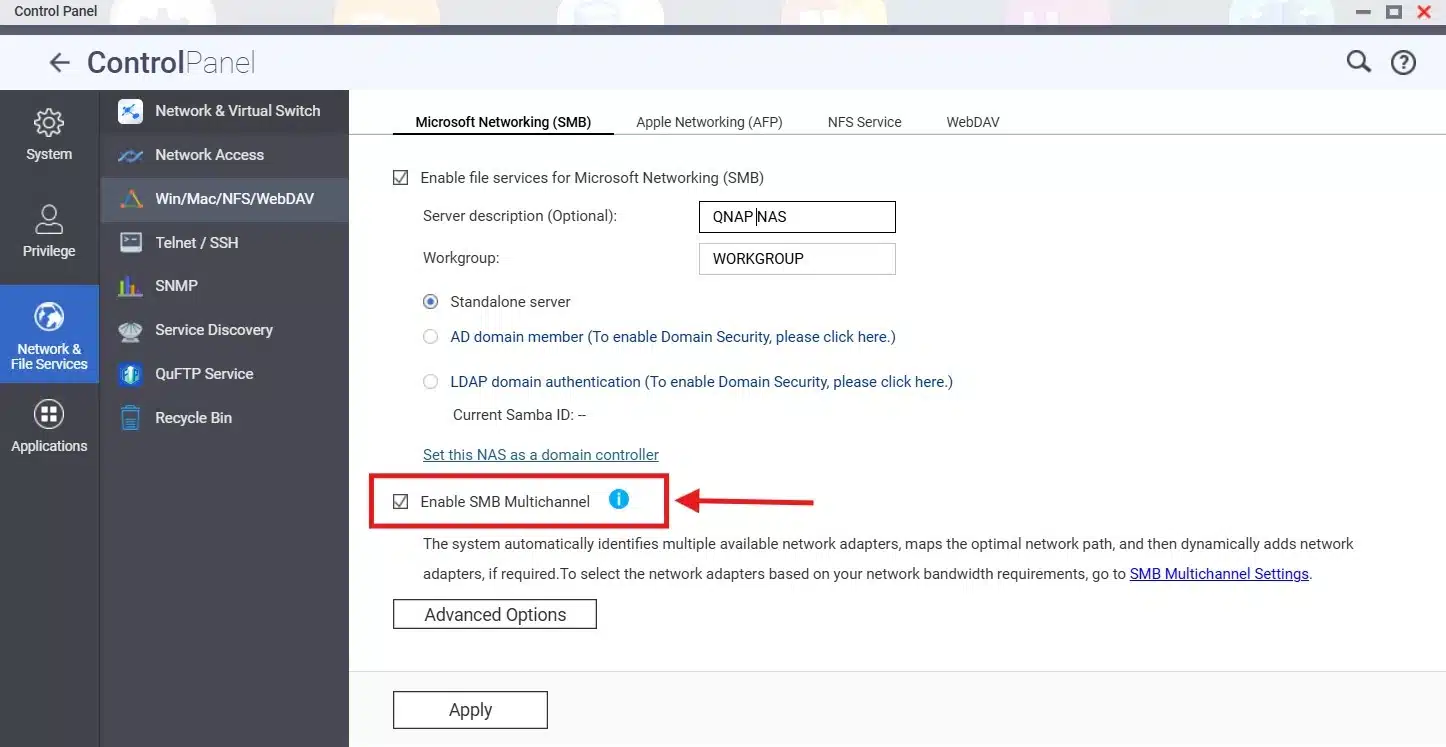
Do not assume SMB Multichannel and Port Trunking should be enabled together. Test the configuration that fits your clients and network design rather than stacking features without measuring the result.
3. Optimize backup and background workloads
Backup jobs can consume disk I/O, CPU, and network bandwidth. Use software that supports efficient incremental or versioned jobs, such as QNAP HBS 3, and schedule heavy backups outside active hours when possible.
4. SSD cache and storage tuning
If your NAS supports SSD cache, consider it for workloads with repeated random access. It is not guaranteed to improve every workload. For background information, see SSD caching.
5. Maintenance and monitoring
- Keep QTS/QuTS hero and apps updated: security and stability updates can fix important issues.
- Check drive health: use built-in SMART/health information and vendor tools where appropriate.
- Replace failed drives promptly: a degraded RAID array reduces redundancy and can affect performance.
- Monitor CPU, RAM, network, and disk activity: this is the fastest way to see where the real limit is.
Conclusion
Improving NAS performance is not about enabling every optimization feature. Measure the bottleneck first, then upgrade or tune the part that is limiting the workload. Faster networking, more RAM, SSDs, Port Trunking, or SMB Multichannel can all help in the right situation, but none of them is a universal fix.
If you use Synology, I also have a dedicated Synology NAS performance guide.