NAS & Backup / Practical guide
What Is Network Attached Storage (NAS) and Why You Need One
Learn what a NAS is, how it works, the roles of RAID, SMB, NFS, backups and snapshots, and what to consider before buying one.

What Is a NAS?
Network Attached Storage, or NAS, is a storage system connected to your network so multiple users and devices can access shared data from one central place.
Instead of keeping the only copy of a file on one laptop or desktop, you can store it on the NAS and control who can read, write, or manage it. Depending on the model, the same NAS can also handle backups, snapshots, media, synchronization, surveillance, containers, and other applications.
How Does Network Attached Storage Work?
A NAS is basically a small storage server. It has an operating system, processor, memory, network interface, and one or more storage drives. The difference from a normal external drive is that the NAS stays on the network and serves files to other devices.
Main NAS Components
1) Operating System
NAS vendors usually provide their own operating system. Synology uses DSM, while QNAP uses QTS or QuTS hero on supported models. The operating system manages storage pools, users, permissions, file services, applications, backups, updates, and monitoring.
2) CPU and RAM
The CPU handles file services, encryption, applications, indexing, media tasks, containers, and other workloads. RAM is used by the operating system and applications and can also help with caching. A simple file server does not need the same hardware as a NAS running virtual machines or heavy applications.
3) HDDs and SSDs
NAS systems can use hard drives, SSDs, or a combination depending on the model. The number of bays matters because it affects total capacity, RAID options, and future expansion.
4) Network Interface
The NAS connects to your LAN through Ethernet and receives an IP address. Some models have one network port, while others offer multiple 1GbE, 2.5GbE, 5GbE, or 10GbE interfaces. Faster networking only helps when the storage, client, and rest of the network can keep up.
What Can You Do With a NAS?
Centralized File Sharing
File sharing is the most basic NAS use case. You can create shared folders and give different users or groups different permissions.
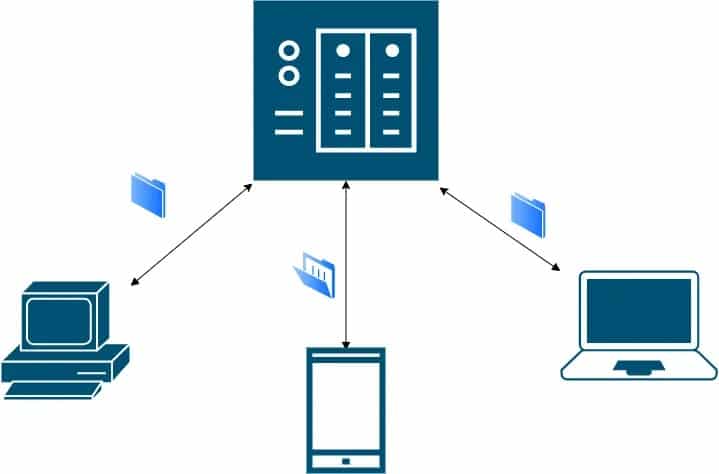
For the concepts behind peer-to-peer, centralized, and cloud file sharing, see Network File Sharing Explained. For the actual NAS setup, see my NAS file sharing and collaboration guide.
SMB and NFS
SMB is the most common file-sharing protocol in Windows environments, but modern macOS and Linux clients can use it too. NFS is common in Linux, Unix, virtualization, and server environments. Many NAS systems support both.
AFP still appears in some NAS interfaces, but I would not design a new Mac file-sharing setup around it. Synology itself recommends SMB because Apple no longer supports AFP servers in modern macOS.
FTP is also supported by many NAS devices, but plain FTP is not encrypted. For sensitive transfers over an untrusted network, use an encrypted alternative such as SFTP or a VPN-protected service.
Backup and Recovery
A NAS can be an excellent backup destination for computers and servers, and it can also back up its own data to external drives, another server, or cloud storage.
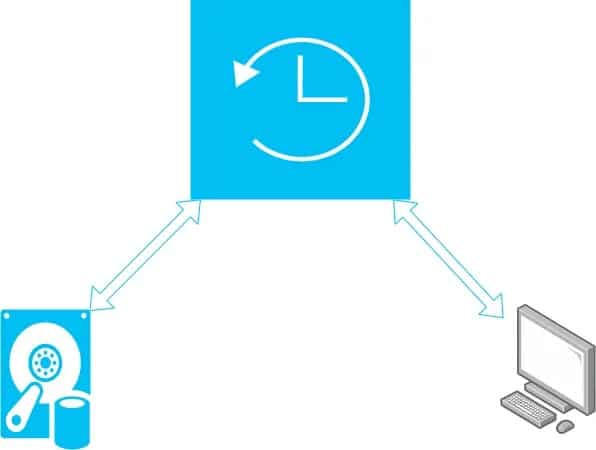
RAID is not a backup. RAID can keep the system available after certain drive failures, but it does not protect you from accidental deletion, ransomware, theft, file corruption, or losing the entire NAS.
For the full design, use my NAS Backup Strategy Guide. For QNAP, I also have the existing HBS 3 external-drive backup guide.
Snapshots
Snapshots can give you fast rollback points when the storage system supports them. They are useful against accidental changes and some ransomware scenarios, but snapshots stored on the same NAS are still not a replacement for an independent backup.
Media and Applications
A NAS can run media servers, photo applications, download tools, databases, containers, surveillance software, and other packages. The more applications you run, the more CPU and RAM matter.
Remote Access
NAS vendors provide remote-access options, including services such as myQNAPcloud. Remote access is convenient, but I would avoid exposing the NAS management interface or file services directly to the internet without a specific reason.
For administration from outside, a VPN or another controlled remote-access layer is usually a safer starting point.
RAID: What It Does and What It Does Not Do
RAID combines multiple drives for redundancy, performance, capacity, or a balance of these goals. Common layouts include RAID 1, RAID 5, RAID 6, RAID 10, Synology SHR, and vendor-specific options.
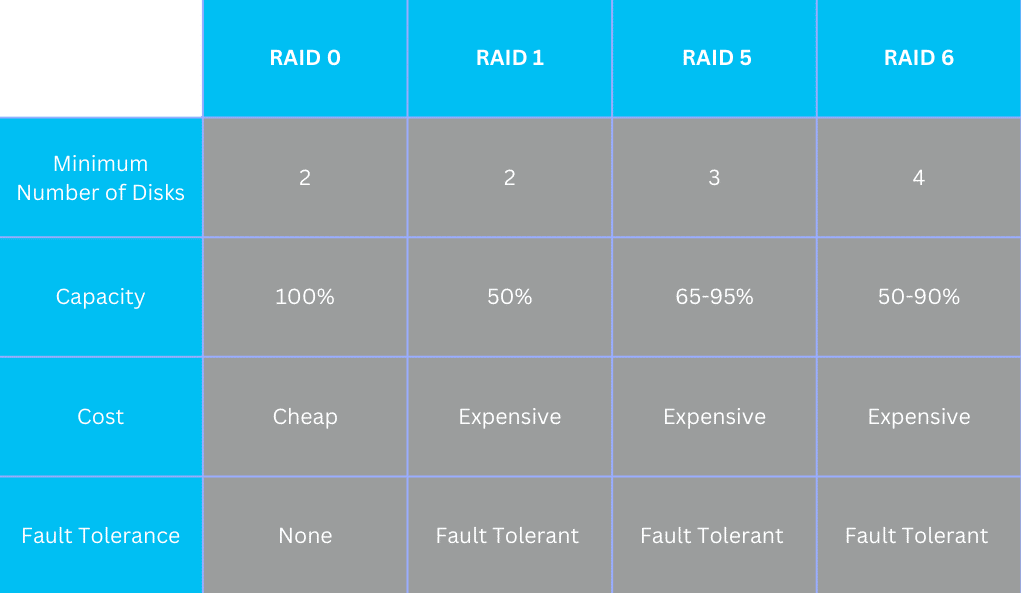
Choose RAID based on drive count, usable capacity, fault tolerance, rebuild risk, and workload. Do not choose it only by which option appears fastest on a chart.
Why Would You Need a NAS?
- One central place for files: useful when several PCs and users work with the same data.
- Controlled permissions: users can receive access only to the folders they need.
- Local backup target: computers and servers can back up to the NAS automatically.
- Media and photo storage: useful when you want one library available to multiple devices.
- Private storage: you control the hardware and local data instead of placing everything in a consumer cloud service.
- Small-team collaboration: shared folders, permissions, versioning, and synchronization can replace scattered copies.
If the NAS is part of a home environment, the Home Network Setup Guide explains where the router, switch, Wi-Fi, and wired devices fit around it.
What to Consider Before Buying a NAS
1) Number of Bays
A two-bay NAS can be enough for a simple home setup, but four or more bays give you more flexibility for capacity, RAID choices, and future growth. Think about where you expect the storage requirement to be in a few years, not only today.
2) Drives and Capacity
Use drives supported by the NAS vendor and sized for the workload. NAS-oriented drives such as Seagate IronWolf and WD Red are common choices, but model compatibility and workload rating matter more than the label alone.
3) CPU and RAM
Basic file sharing needs relatively little hardware. Containers, Plex transcoding, surveillance, virtual machines, encryption-heavy workloads, and many concurrent users need more resources.
4) Network Speed
1GbE is enough for many homes and small offices. If several users move large files or you already saturate 1GbE, 2.5GbE or 10GbE may make sense. Check the rest of the network first, because a 10GbE NAS connected through a 1GbE switch is still limited by the 1GbE path.
For tuning and bottleneck checks, see How to Improve NAS Speed and Performance.
5) Backup, Snapshots, and Filesystem Features
Check whether the model supports the backup destinations, snapshots, encryption, replication, filesystem, and restore features you actually plan to use. These capabilities can matter more than a small difference in CPU speed.
6) Security and Updates
A NAS stores important data and often runs for years, so firmware support and security features matter. Keep it updated, use strong administrator security, avoid unnecessary internet exposure, and disable services you do not use.
For QNAP-specific hardening, see my existing QNAP NAS security guide.
7) Total Cost
Do not compare only the price of the empty NAS enclosure. The real cost can include hard drives, RAM upgrades, faster networking, backup storage, a UPS, and possibly cloud storage. A NAS has a higher upfront cost than many cloud plans, but it can make sense when you want local capacity, control, and predictable long-term storage.
Conclusion
A NAS is most useful when you need centralized storage that several devices or users can access and manage consistently. It can handle file sharing, backup, snapshots, media, synchronization, and many other jobs, but the design still needs proper permissions, independent backups, and sensible network security.
If you are starting from scratch, decide the main job first: file sharing, backup, media, business collaboration, or application hosting. Then choose the bays, drives, network speed, CPU, RAM, and backup plan around that workload instead of buying the biggest specification sheet you can find.