NAS & Backup / Practical guide
How to Back Up a Synology NAS to Google Drive with Hyper Backup
Set up a scheduled Synology Hyper Backup task to Google Drive, including folder selection, encryption, version rotation, integrity checks, and restore testing.
Synology Hyper Backup can send scheduled, versioned backups from your NAS directly to Google Drive. This guide walks through the full setup, including folder selection, scheduling, encryption, rotation, testing, and restoration.
Google Drive is a supported Hyper Backup destination. This is a backup task, not the same as synchronizing files with Synology Cloud Sync.
Before you begin: Check that your Google account has enough free space for the first backup and future versions. If you enable client-side encryption, securely store the password and downloaded key. Losing them can make the backup impossible to restore.
What you need
- A Synology NAS running DSM with Hyper Backup installed
- A Google account with enough available storage
- A stable internet connection for the NAS
- Administrator access to DSM and permission to authorize Hyper Backup in Google
Set up Hyper Backup with Google Drive
Step 1 – Install Hyper Backup on your Synology NAS
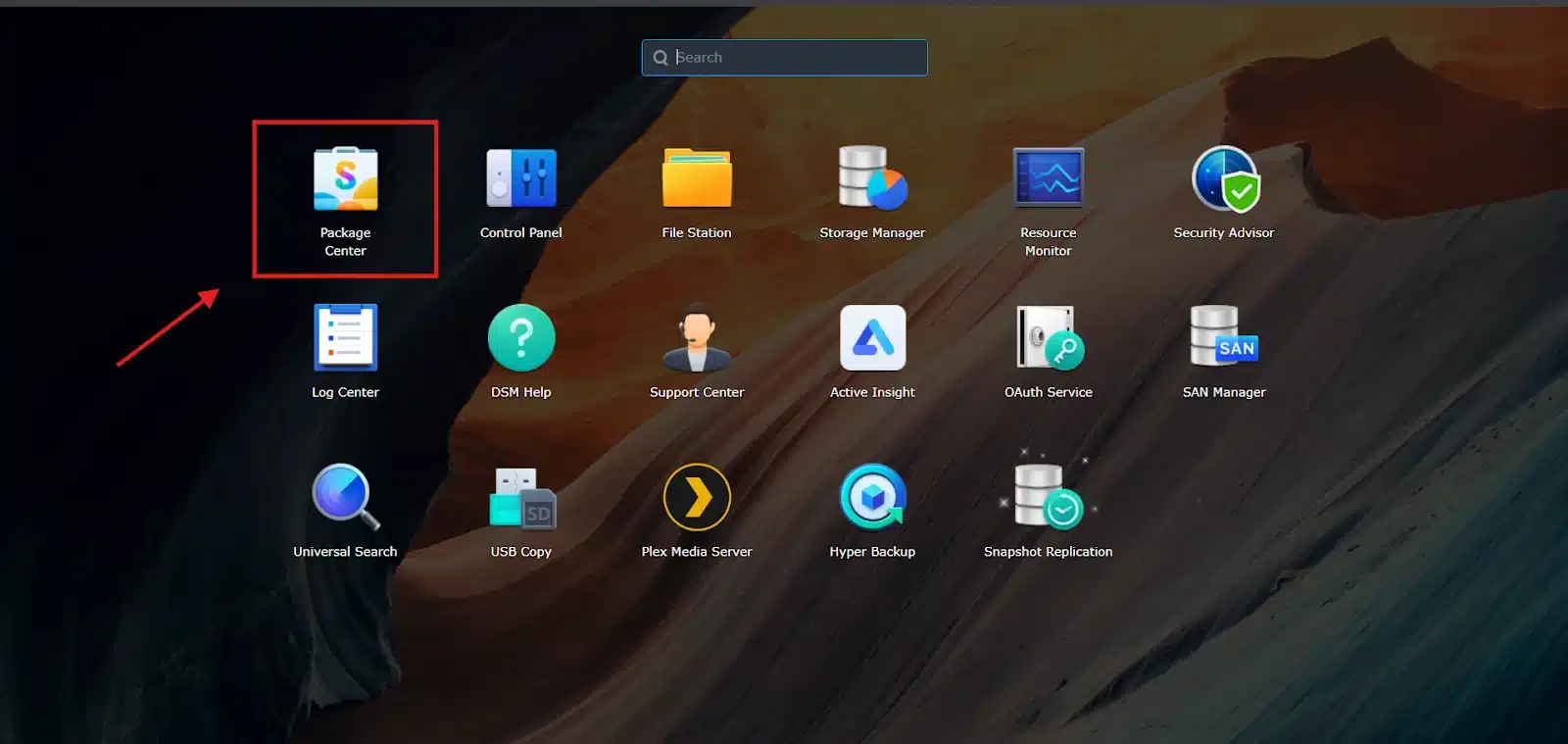
On the Synology web management portal, open Package Center:
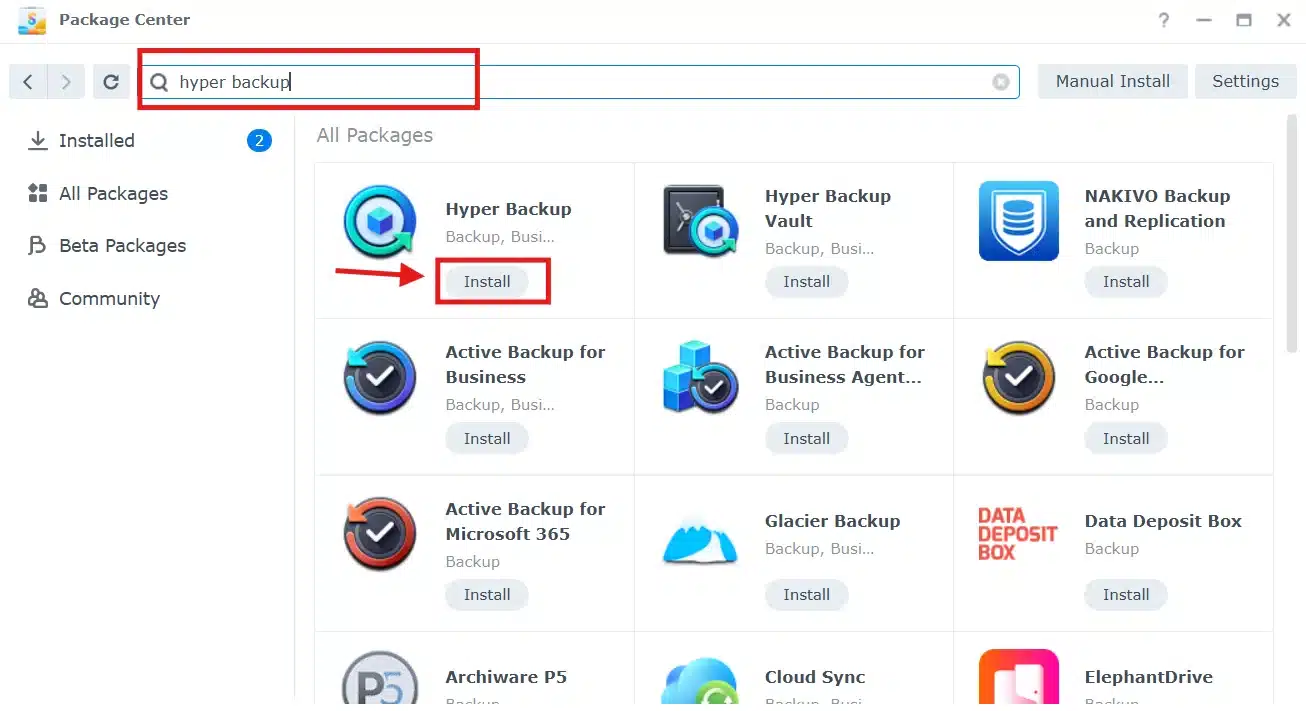
Search for Hyper Backup and click Install:
Step 2 – Create a backup folder in Google Drive
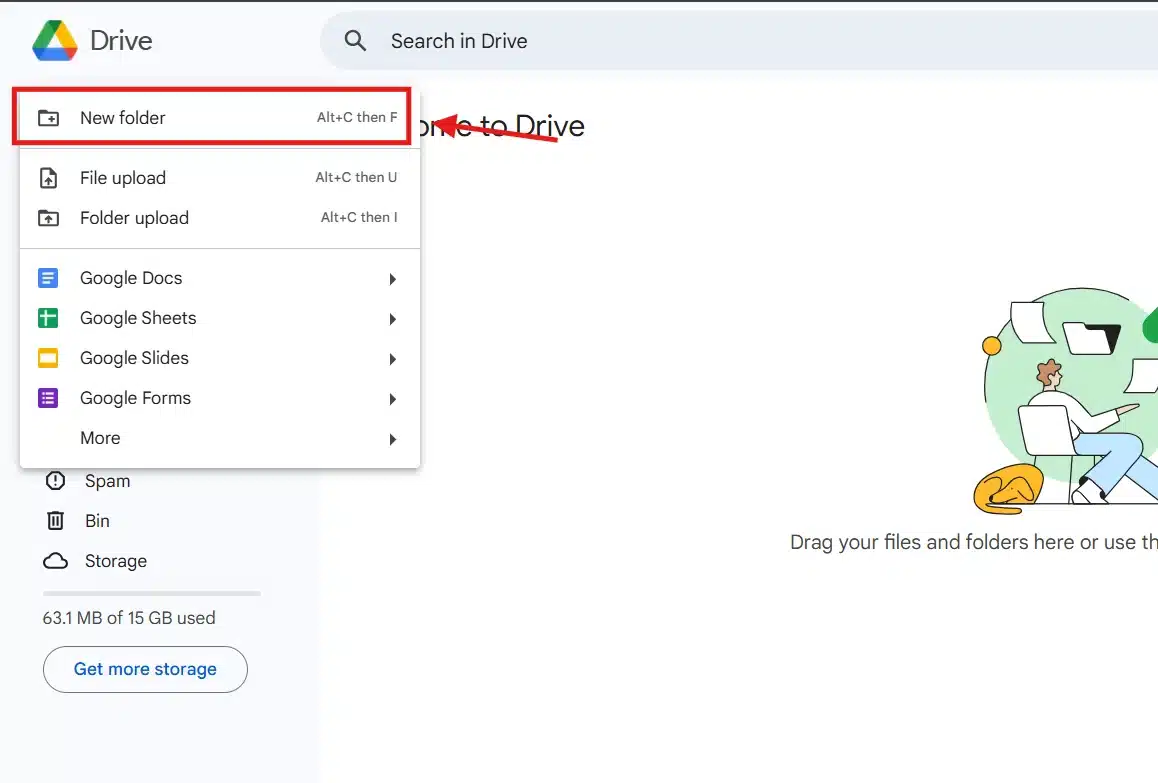
Open Google Drive, click New, then New folder:
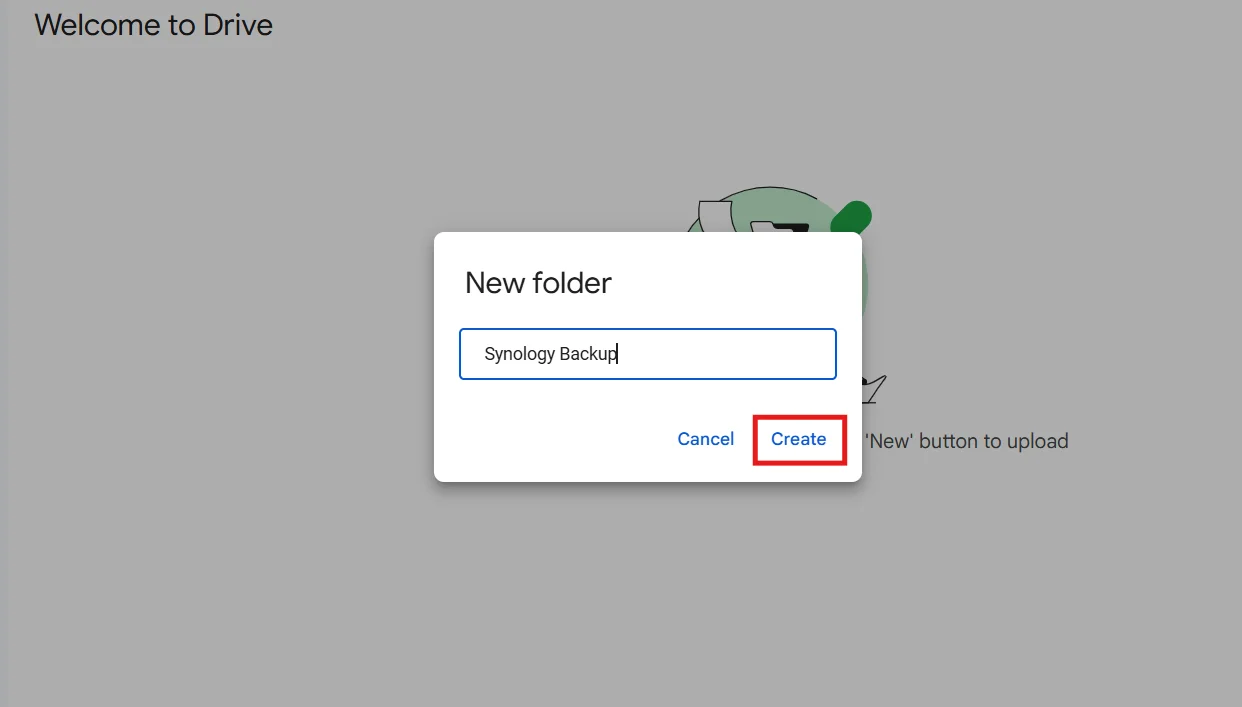
Give the folder a clear name, then click Create:
Step 3 – Create the Google Drive backup task
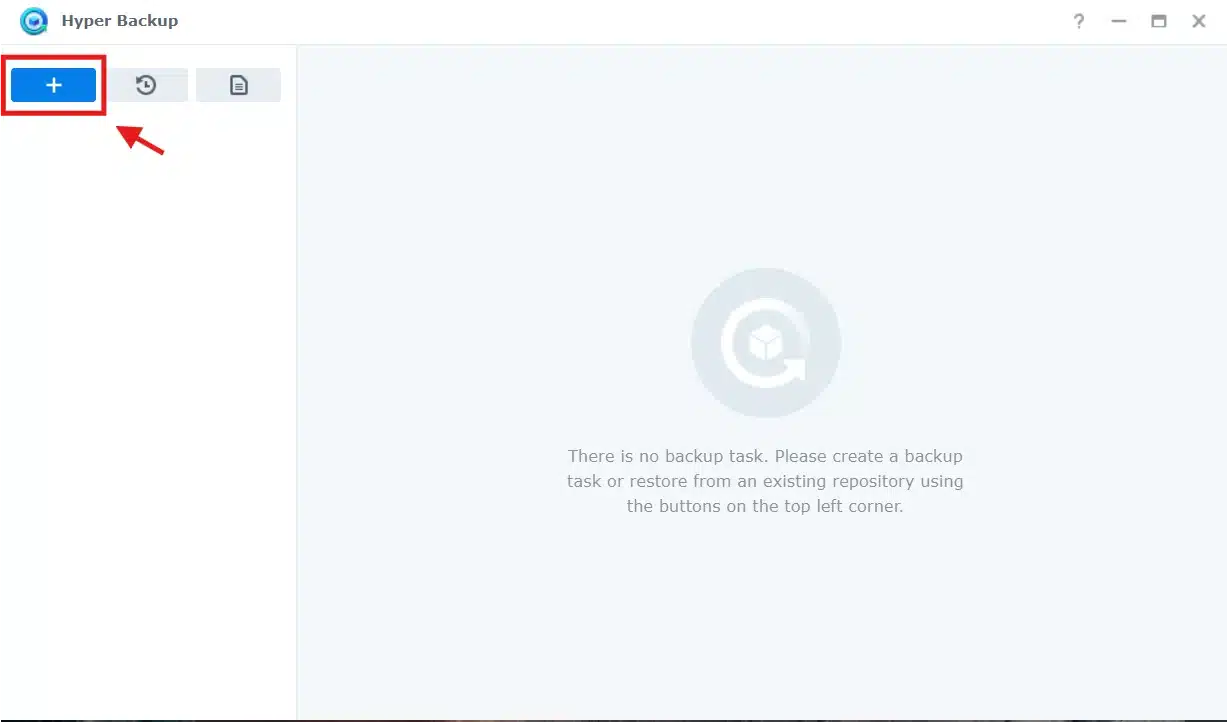
Open Hyper Backup and click the icon to add a new backup task:
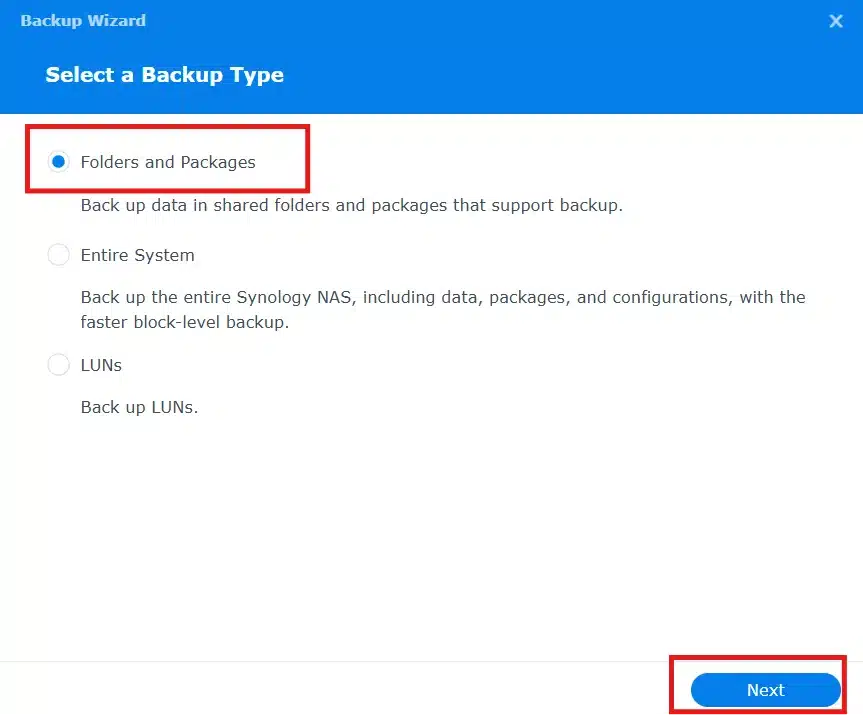
Select Folders and Packages, then click Next:
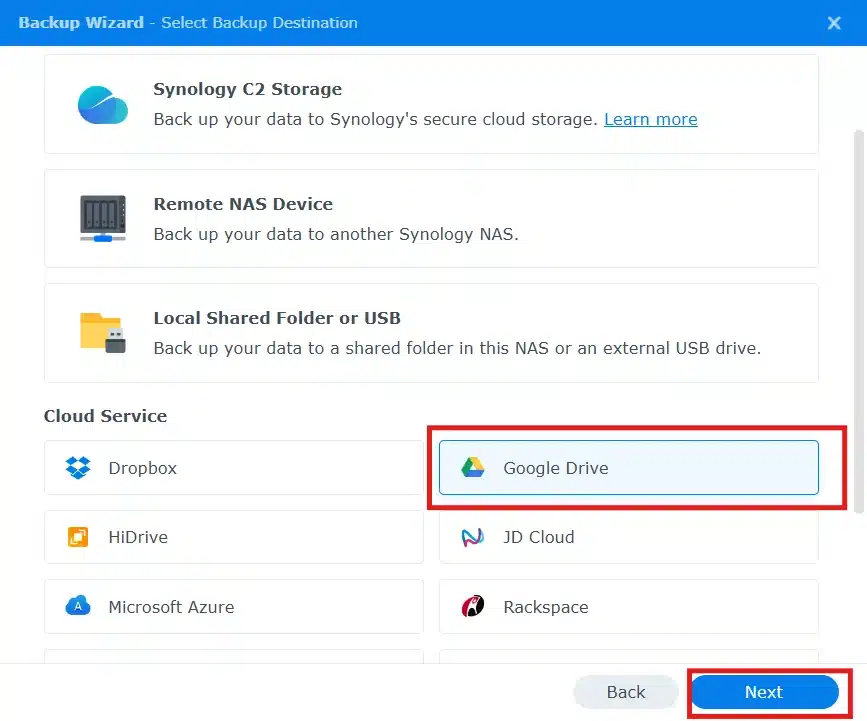
For the backup destination, select Google Drive, then click Next:
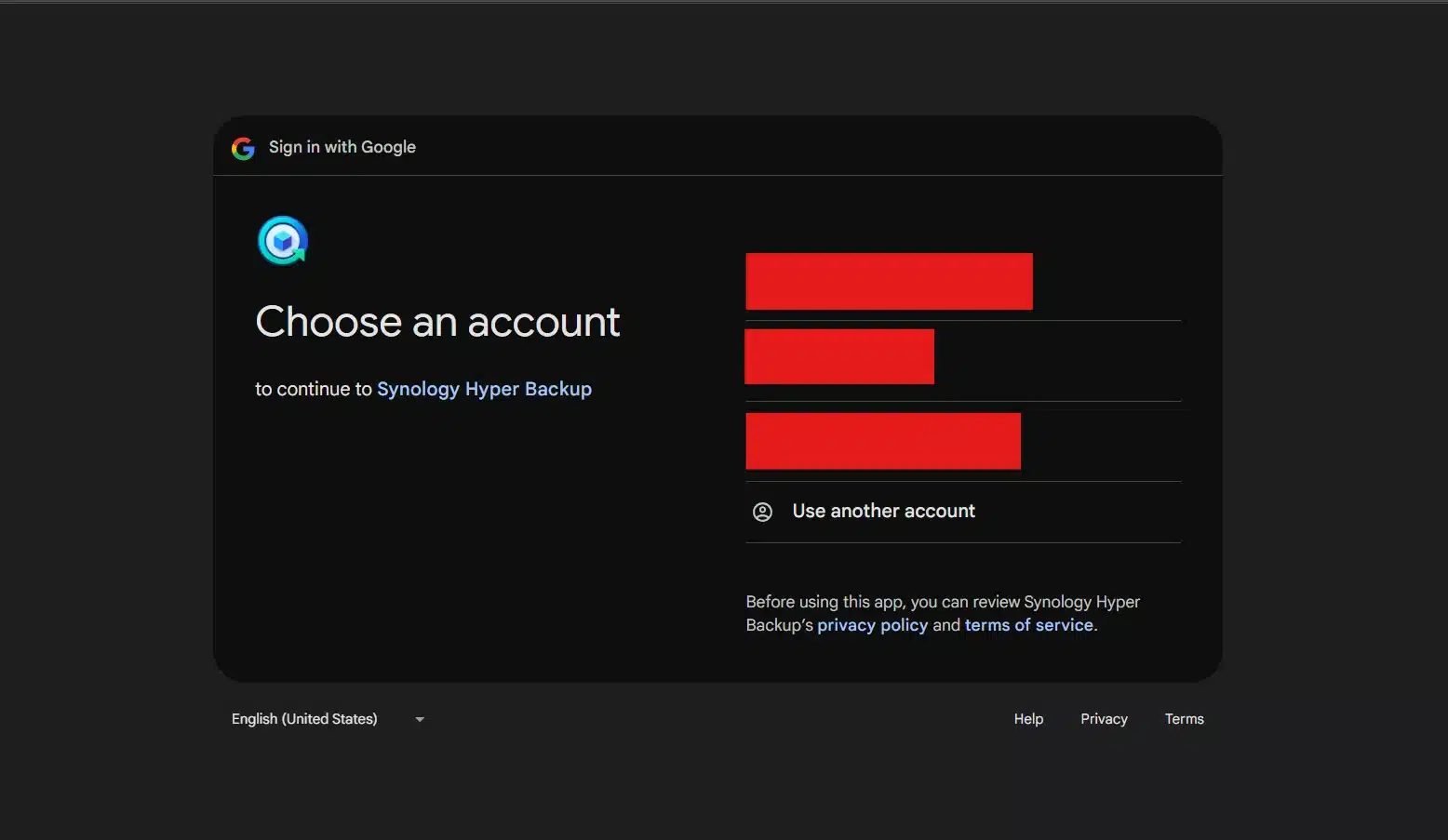
A browser window will open for Google authorization. Sign in to the Google account you want to use for the backup:
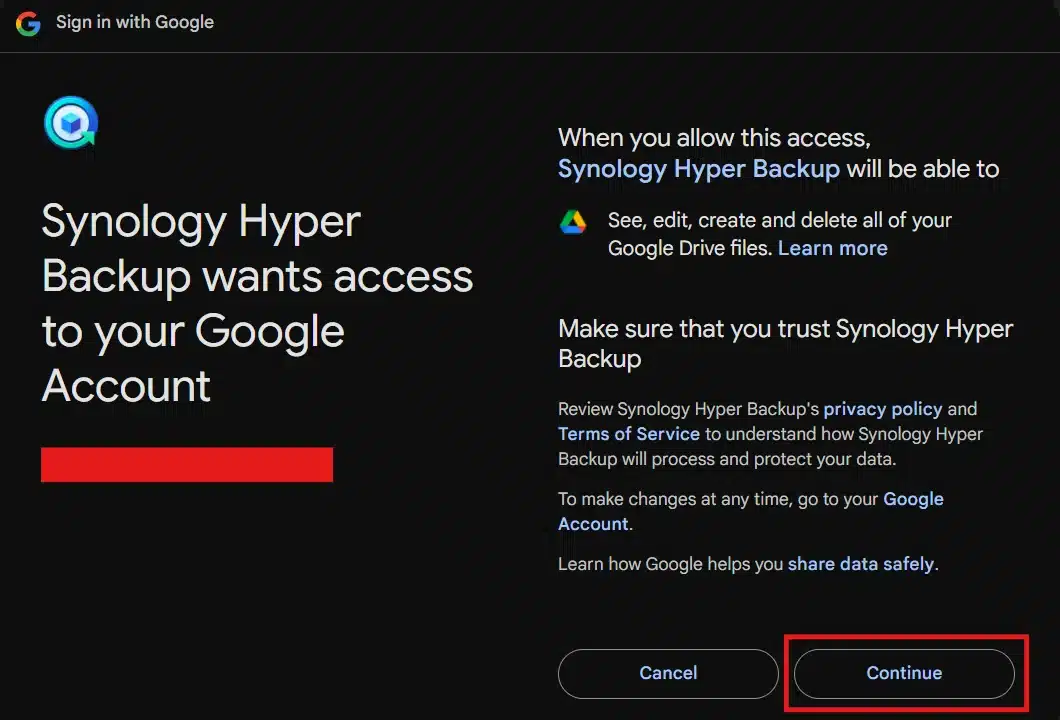
Grant the requested permissions to Synology Hyper Backup:
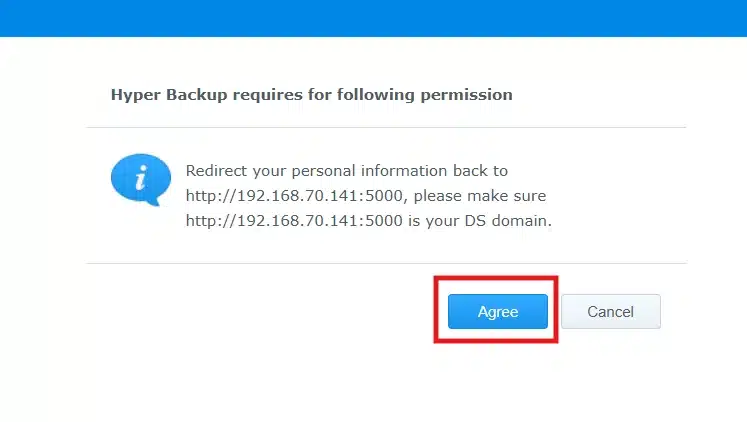
Click Agree to complete the authorization:
Back in Hyper Backup, select the Google Drive folder created earlier:
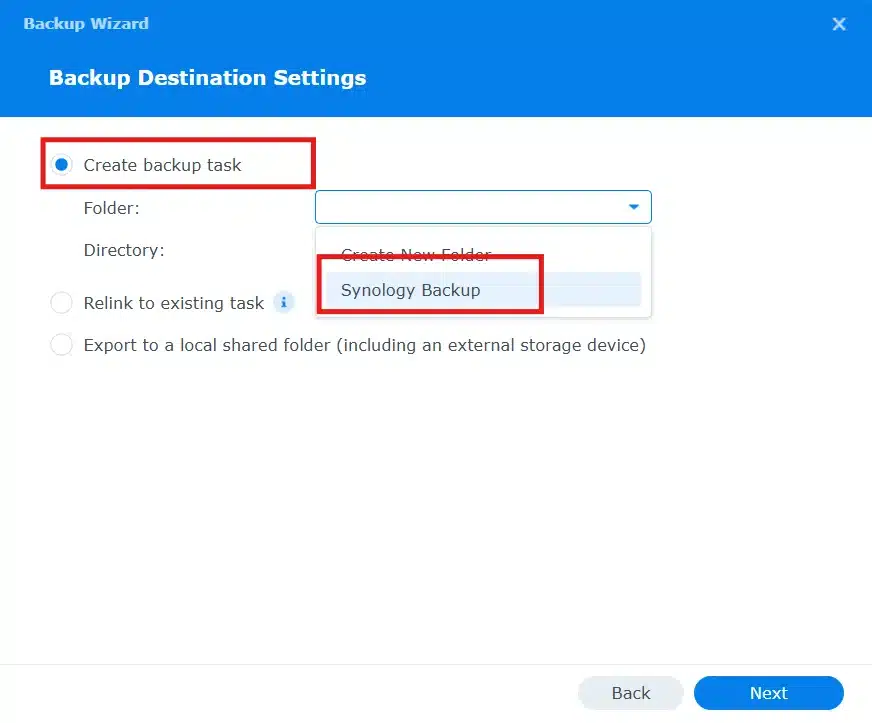
Give the backup directory a name, then click Next:
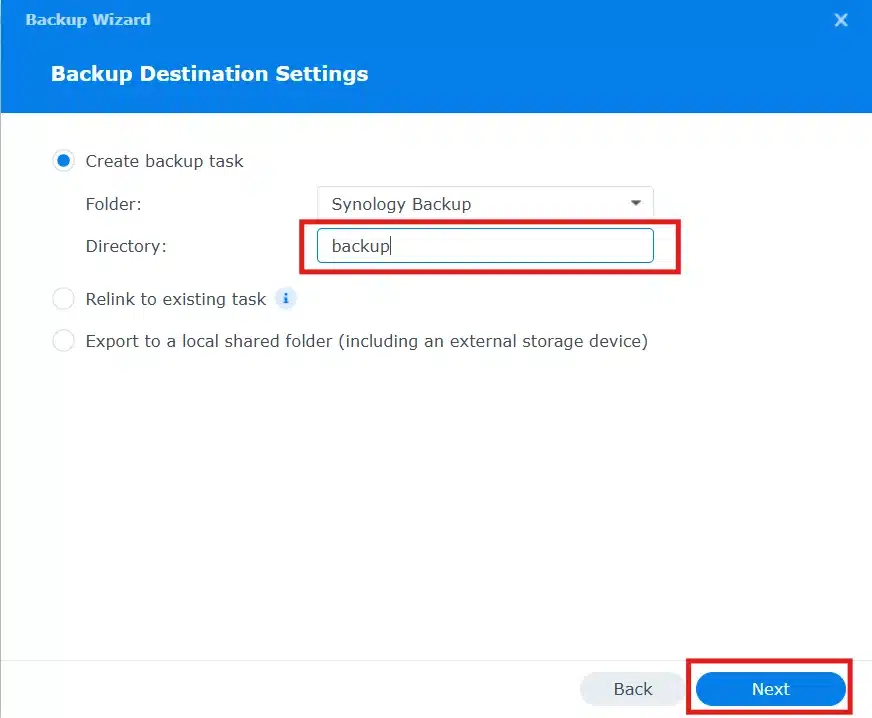
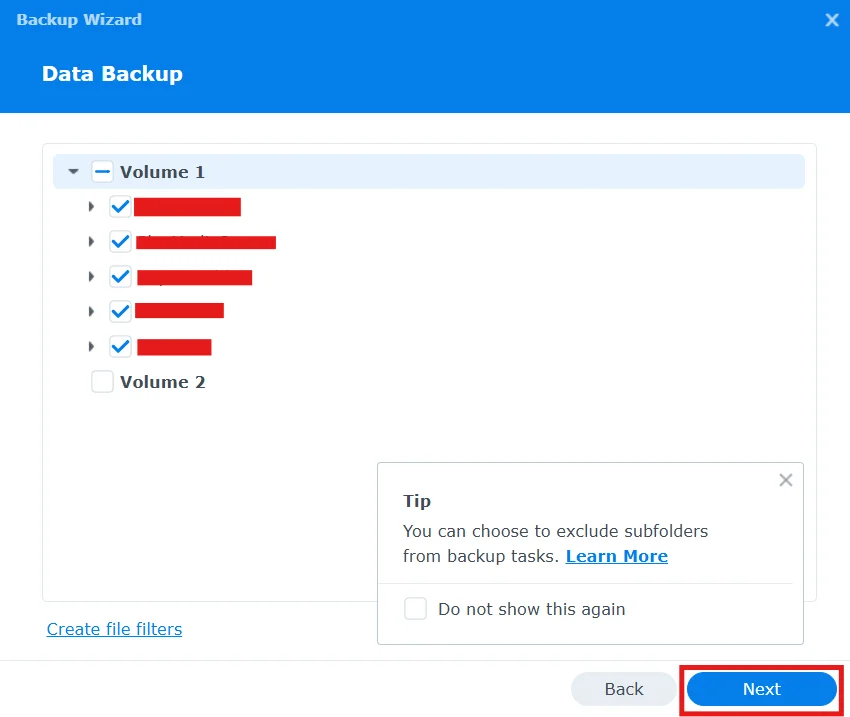
For data backup, select the shared folders you want to include. In the example below, the shared folders on Volume 1 are selected. Hyper Backup backs up the selected shared-folder data; it does not create a raw image of the entire volume.
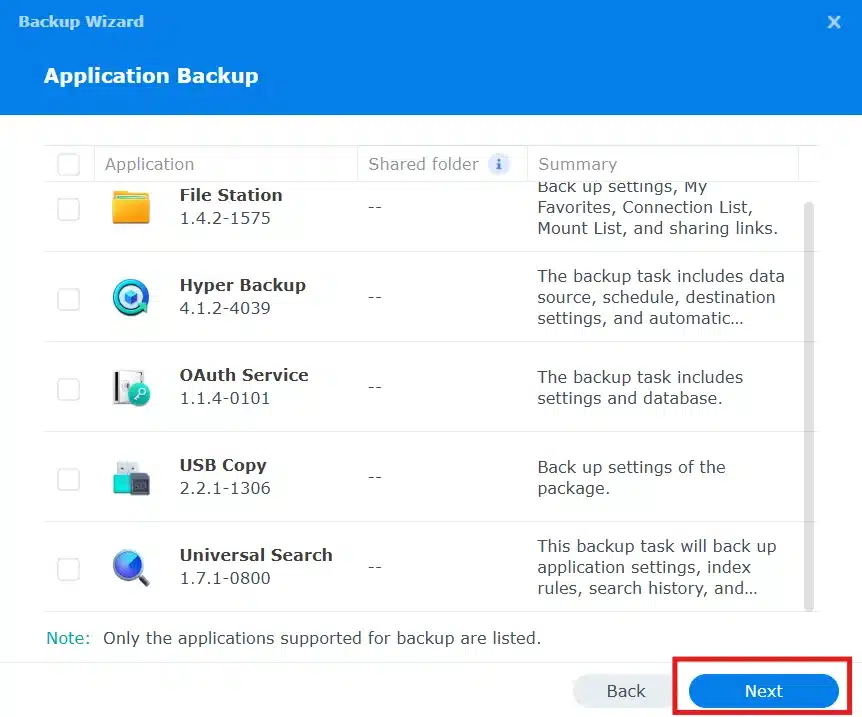
If you also want to back up supported application data and settings, select the applications here:
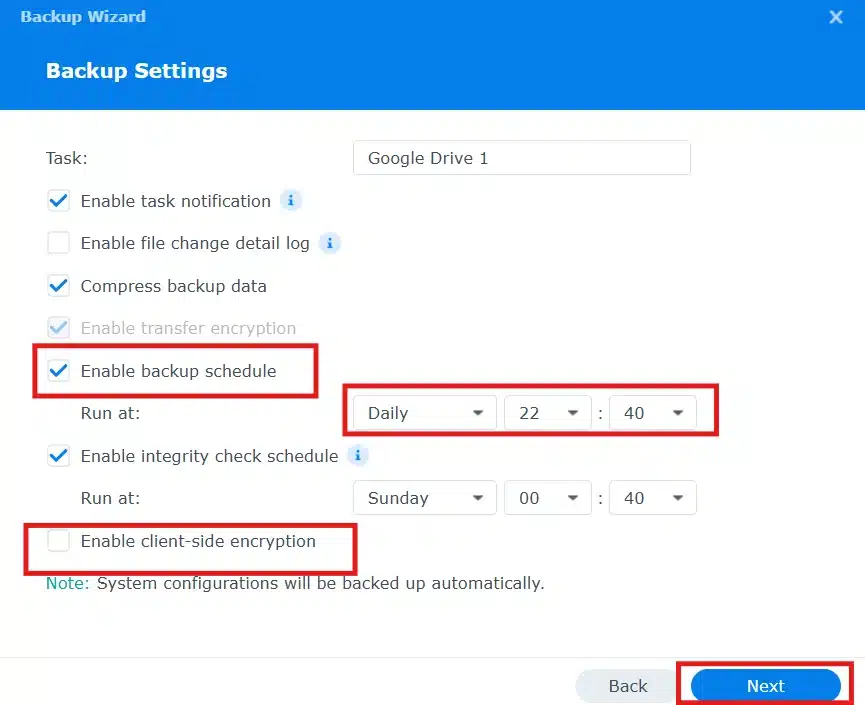
Configure the backup schedule. You can also enable client-side encryption if the backup contains sensitive data. Google Drive connections are already encrypted in transit; client-side encryption adds protection to the backup data itself before it leaves the NAS.
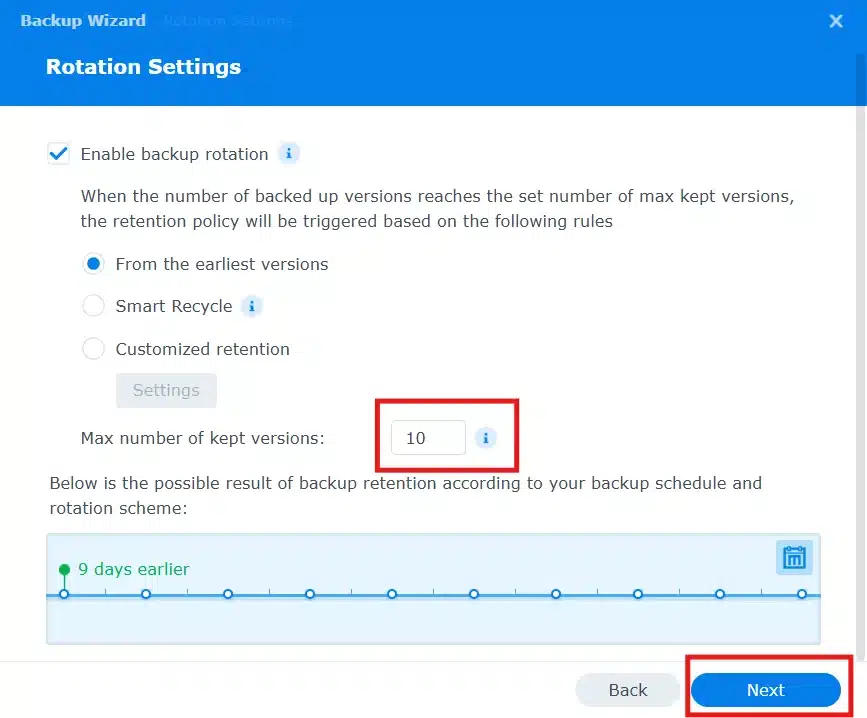
Next, configure backup rotation and the number of versions you want to retain. For most users, Smart Recycle is a practical option because it keeps more recent versions while gradually reducing older restore points.
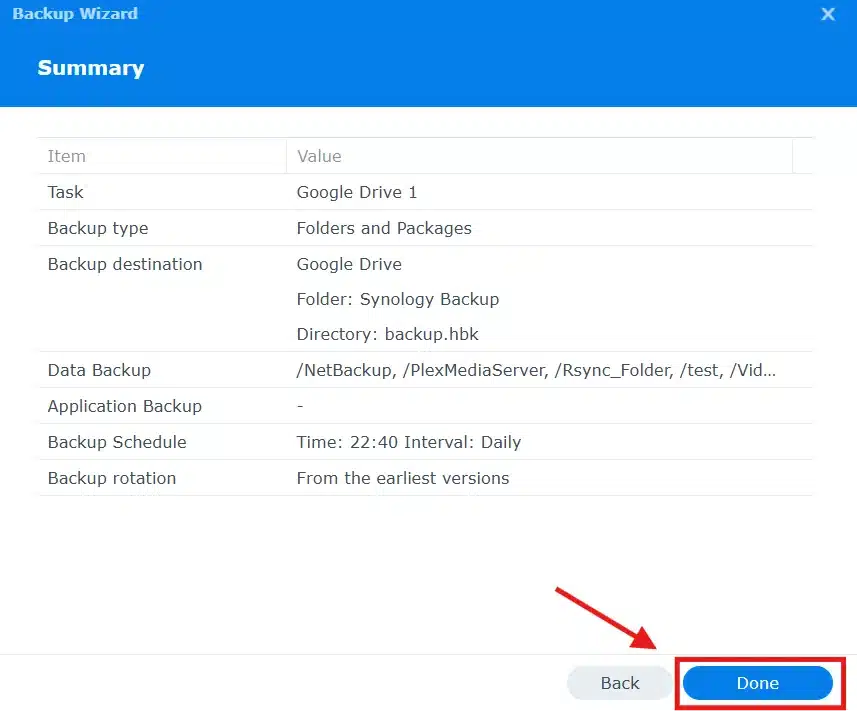
Review the settings and click Done:
Step 4 – Test and restore the backup
Run the first backup manually by clicking Back Up Now:
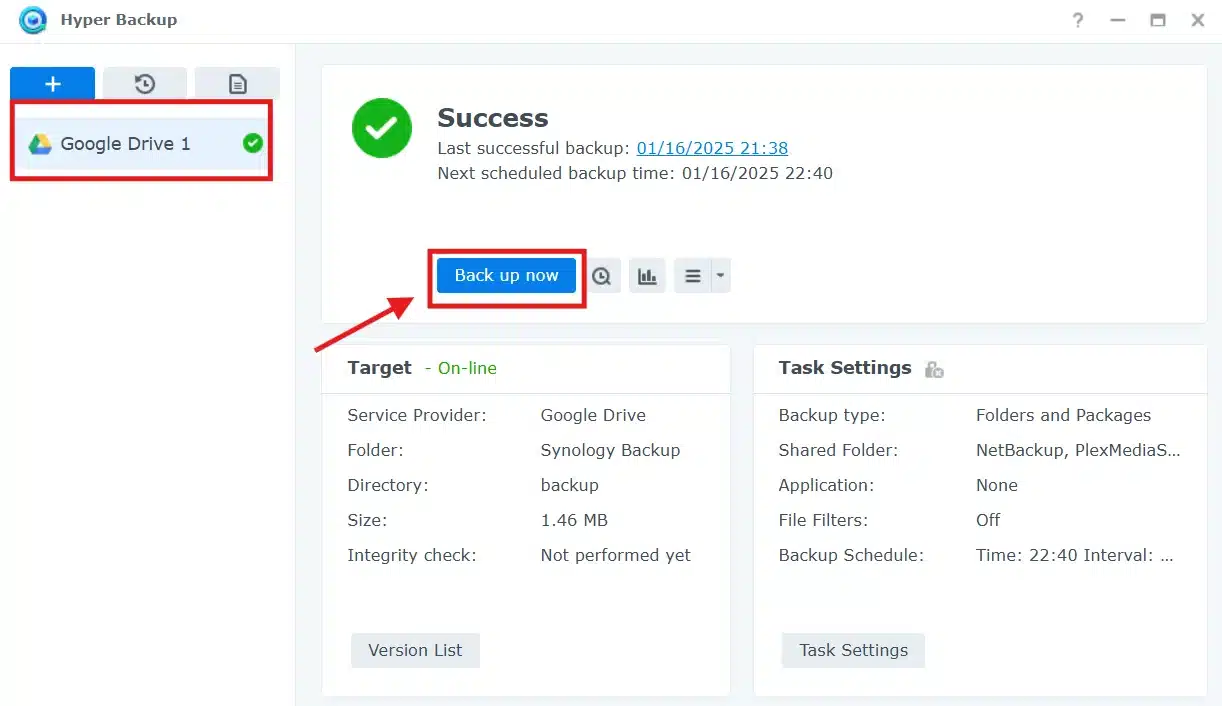
Do not stop at a successful job status. Restore a small test file or folder and confirm that it opens correctly. For the restore workflow, check this restore section; the same Hyper Backup restore concept applies to Google Drive.
Recommended settings for most home users
- Schedule: Run the task daily during a quiet period.
- Rotation: Enable Smart Recycle so older versions do not fill Google Drive indefinitely.
- Encryption: Enable client-side encryption for sensitive data, but keep the password and key somewhere separate from the NAS.
- Integrity: Schedule periodic integrity checks and perform a small test restore after creating the task.
Frequently asked questions
Is Hyper Backup the same as Cloud Sync?
No. Hyper Backup creates a backup repository designed for restoration and version history. Cloud Sync keeps files synchronized between locations and serves a different purpose.
Can I browse the backed-up files directly in Google Drive?
A multi-version Hyper Backup task stores data in Hyper Backup’s backup format. Use Hyper Backup or Hyper Backup Explorer to browse and restore the contents.
What happens if I lose the encryption password or key?
You may be unable to restore the encrypted backup. Keep both outside the NAS in a secure password manager or another protected location.
Should I rely on Google Drive as my only backup?
No. For important data, keep another independent copy, such as a local USB backup or a second NAS. One cloud task is useful, but it is not a complete backup strategy by itself.
Conclusion
Backing up your Synology NAS to Google Drive with Hyper Backup gives you an automated off-site copy with version history. The setup is only complete after you run the first backup, check its status, and successfully restore a test file.
If you prefer a local backup, you can also back up your Synology to another server using Rsync.